Peapod User Manual
Updated on 2025-11-23 to align terminology with GLOSSARY_CORE_TERMS.md.
Version: v0.19.0 Last Updated: December 17, 2025 Platform: iOS (iPhone, iPad)
What’s New in CN Release 1.0: - ✅ 0% Guest Fee - Guests pay NO platform service fees - ✅ Host Tier Fees - Silver 13%, Gold 12.5%, Platinum 12%, Diamond 11.5% - ✅ Co-Host Role Enabled - Co-hosts can manage properties on behalf of hosts - ✅ Phone/SMS Verification - Identity verification via SMS (US and China +86) - ✅ Cancellation Policy Appendix - Detailed Flexible/Moderate/Strict policies documented - ✅ Loyalty Points for Discounts Only - No cash withdrawal (CN restriction) - ✅ CN-First Language Experience - 登录页面默认显示中文,并提供明显的中 / EN 语言切换按钮 - ✅ Multi-Currency Display - Prices show in listing’s native currency (¥ for China, $ for US) regardless of user’s region. Cross-border bookings are charged in the listing’s currency; your bank handles conversion. - ⏳ Experiences - Future feature (not available in CN Release 1.0)
Table of Contents
- Introduction
- Getting Started
- Common Features
- For Guests
- For Hosts & Co-Hosts
- For Cleaners
- For Curators
- For Admins
- Planned Features
- Troubleshooting & FAQ
- Appendix: Version History
1. Introduction
1.1 What is Peapod?
Peapod is a premium short-term rental marketplace connecting guests with unique accommodations worldwide.
Key Features: - Curated listings reviewed by curator team - Direct host communication via real-time messaging - Loyalty rewards program - Secure payments (Apple Pay, Stripe) - 24/7 support - Fast performance (10-100x faster search) - Enterprise security (bank-level encryption, PCI-compliant)
1.2 User Roles
Guest - Search, book, and review accommodations - Browse properties with advanced filters - Book stays with secure payment - Message hosts - Leave reviews and earn loyalty points - Manage trips and bookings
Host - List properties and manage bookings - Create and edit listings - Handle booking requests - Communicate with guests - Track earnings and payouts - Manage team (co-hosts, cleaners)
Co-Host - Manage assigned properties - Edit listings (except pricing) - Message guests (assigned properties only) - View bookings - Update calendar - Report to property owner
Cleaner - Complete cleaning tasks - View assigned cleaning tasks - Mark tasks complete - Upload completion photos - Report issues - Manage availability schedule
Curator - Review and approve listings - Review listing submissions - Approve or reject properties - Request improvements - Monitor quality standards - Communicate with hosts
Admin - Manage platform - User management - Platform configuration - View analytics and reports - Handle support tickets - Monitor platform health
1.3 System Requirements
- iOS: 17.0 or later
- Device: iPhone or iPad
- Internet: Required for all features
- Location: Optional (improves search)
- Notifications: Optional (recommended)
2. Getting Started
2.1 Installation
- Download Peapod from App Store
- Open app
- Grant permissions (notifications, location - optional)
2.2 Creating an Account
Sign Up Methods: - 🍎 Apple Sign In (Recommended) - One-tap with Face ID/Touch ID, most secure - 🔑 Google Sign In - Use Google account (not available in China) - 📱 Phone Number - SMS verification (toll-free approval pending) - 📧 Email & Password - Traditional method, works everywhere - 💬 WeChat (Coming Q1 2026) - Popular in China - 💬 WhatsApp (Planned) - Global availability
Sign Up Steps (Email): 1. Tap “Sign Up” 2. Select role: Guest or Host 3. Enter email and password (min 6 characters) 4. Agree to Terms of Service 5. Tap “Create Account” 6. Verify email (check inbox) 7. Complete first-time setup

Sign Up Steps (Apple/Google): 1. Tap “Sign Up” 2. Select role 3. Tap Apple (🍎) or Google (🔑) icon 4. Authenticate 5. Confirm role and region 6. Select language 7. Tap “Continue” → Instant access (no email verification)


2.3 Sign In
How to Sign In: 1. Open Peapod 2. Tap “Sign In” 3. Choose method: - Email - Enter email and password - Apple/Google/Phone - One-tap authentication 4. Access your account
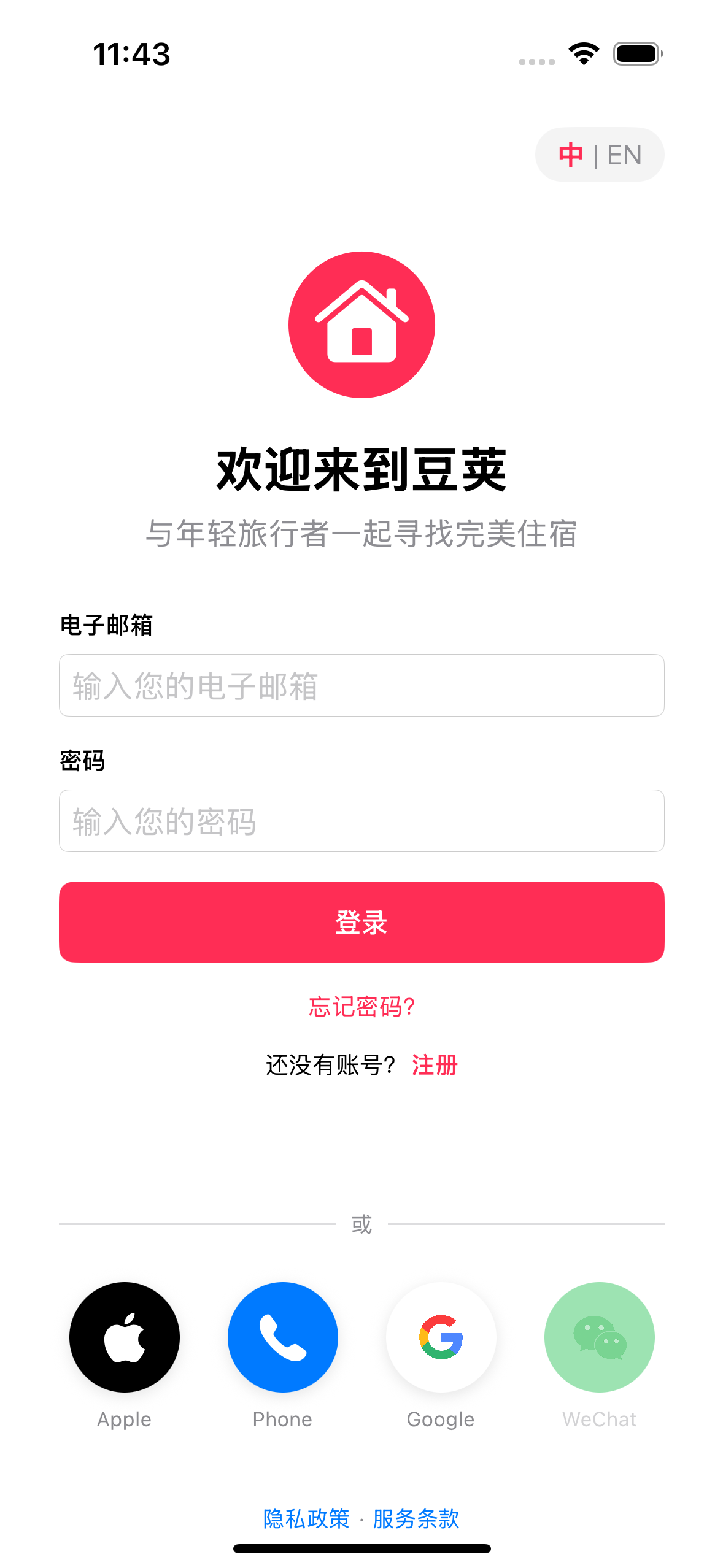
Forgot Password: 1. Tap “Forgot Password?” 2. Enter email 3. Check email for reset link 4. Create new password 5. Sign in

2.4 Sign Out
Sign Out (Current Device): 1. Tap Profile tab (person icon) 2. Scroll to bottom 3. Tap Sign Out (red button) 4. Confirm 5. Redirected to login screen

What Happens: - Logged out of current device only - Data remains on server - Other devices stay logged in - Can sign back in anytime
2.5 Role Switching
Understanding Roles:
Every user has a primary role (Guest or Host) that determines their default experience: - Primary Guest - Your primary use is booking stays (you may also host occasionally) - Primary Host - Your primary use is listing properties (you may also travel as a guest)
Special Dedicated Roles: - Curator - Dedicated, isolated role for reviewing listings (cannot be combined with Guest/Host) - Admin - Dedicated, isolated role for platform management (cannot be combined with Guest/Host)
When you sign in, you start in your primary role (Guest or Host) by default.
For Users with Multiple Roles:
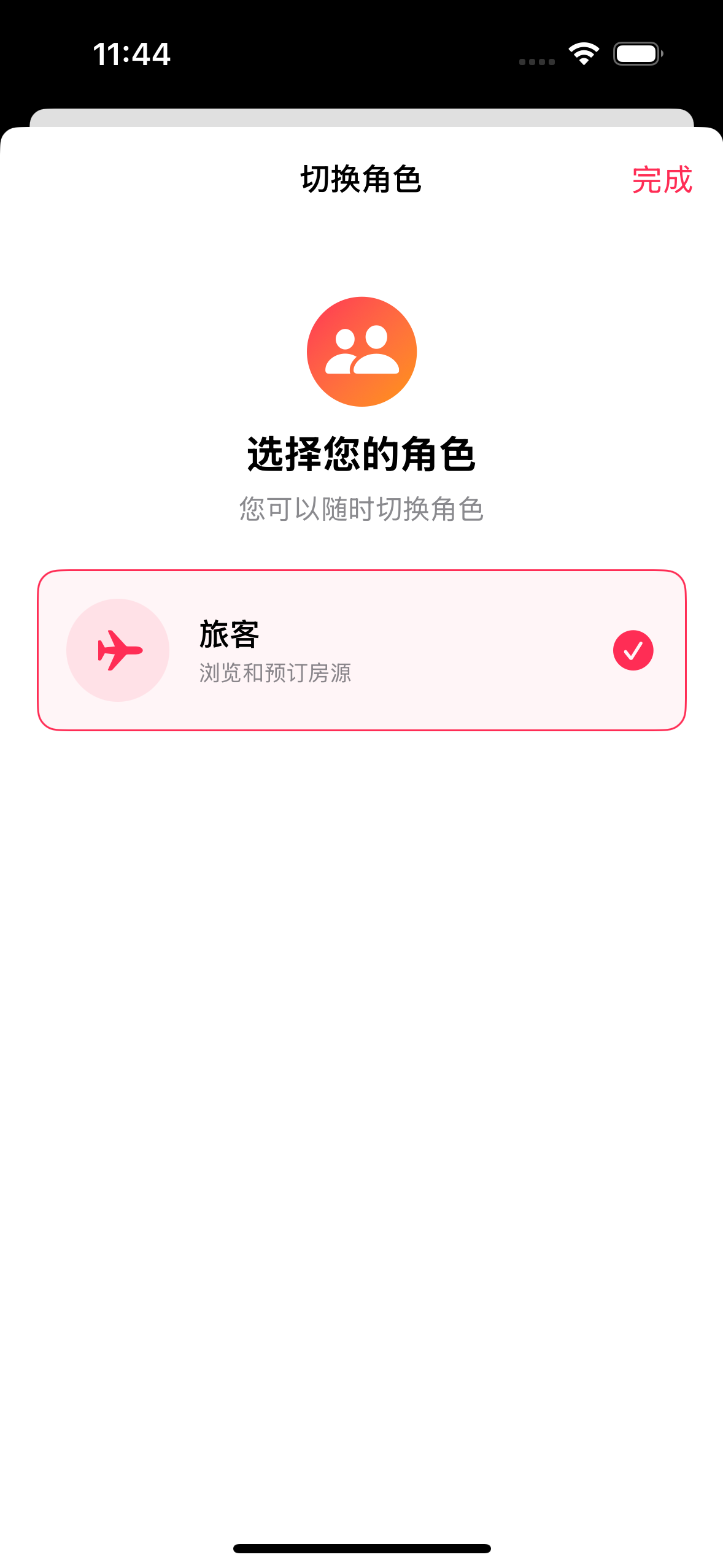
If you have multiple roles (e.g., Guest + Host, or Host + Co-Host + Cleaner), you can switch between them.
Switching Your Active Role: 1. Tap Profile tab → tap profile photo 2. Tap Switch Role 3. Select role: Guest, Host, Co-Host, Cleaner (if assigned) 4. App reloads with new tab bar
Setting Your Default Login Role:
If you have multiple roles, you can choose which role you want to start with when you sign in.
- Profile → Preferences
- Under Account Behavior, tap Default Login Role
- Select from your available roles: Guest, Host, Co-Host, or Cleaner
- This becomes your default role on every login

Available Roles: - Guest - Browse and book properties as a traveler - Host - Manage your own listings (only if you have created listings) - Co-Host - Help manage properties you’ve been invited to assist with - Cleaner - View and complete cleaning tasks for assigned properties
Note: Curator and Admin are isolated roles and cannot switch to other roles.
What Changes: - Bottom tab bar updates for new role - Dashboard shows role-specific metrics - You only see data relevant to active role - Permissions adjust automatically
Tips: - Your selected default role is saved and persists across logins - If you lose access to a role (e.g., removed as cleaner), the app automatically falls back to Guest - Multi-role users: Switch to Guest for bookings, Host for managing properties, Cleaner for tasks - Current role shown at top of Profile with role badge
3. Common Features
Features that work the same across all user roles.
3.1 Profile and Settings
3.1.1 Profile Management
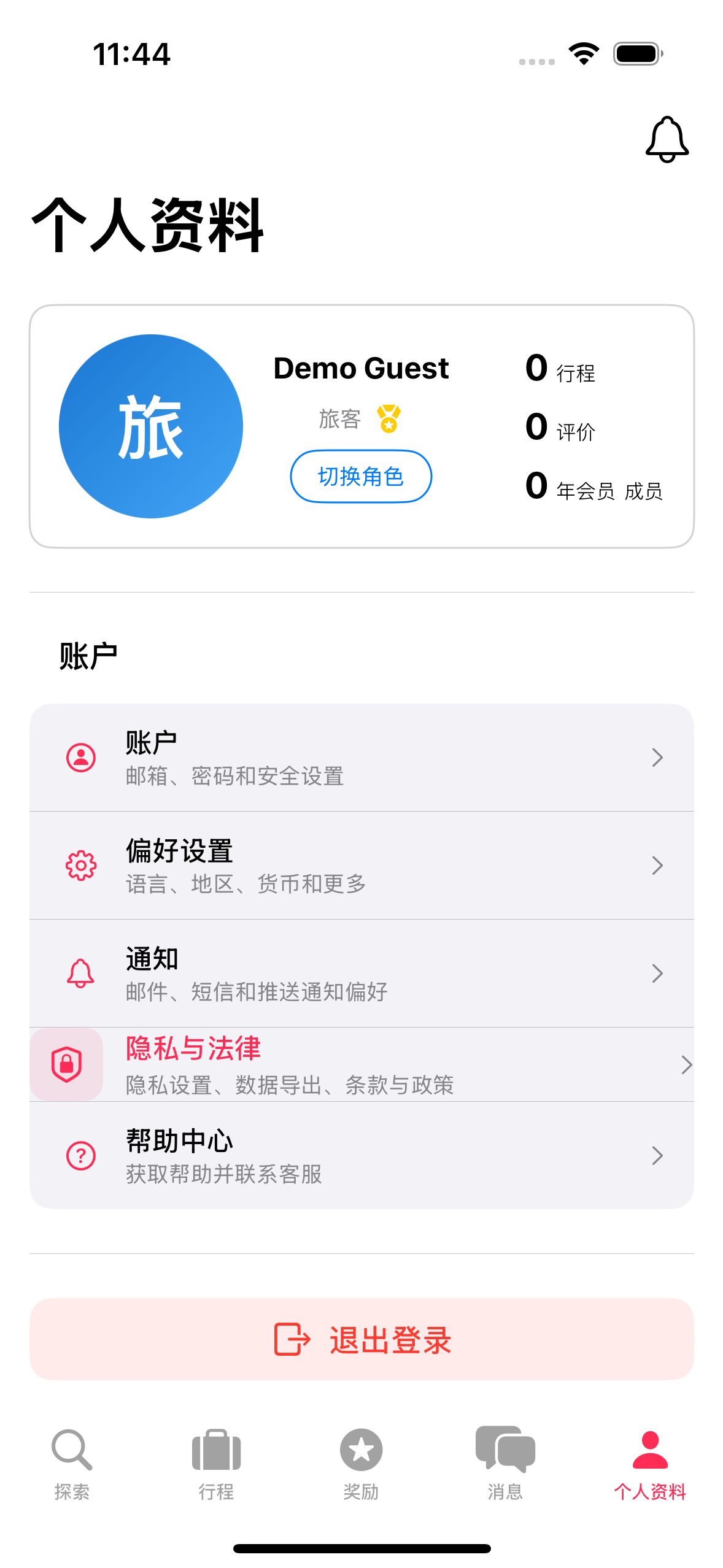
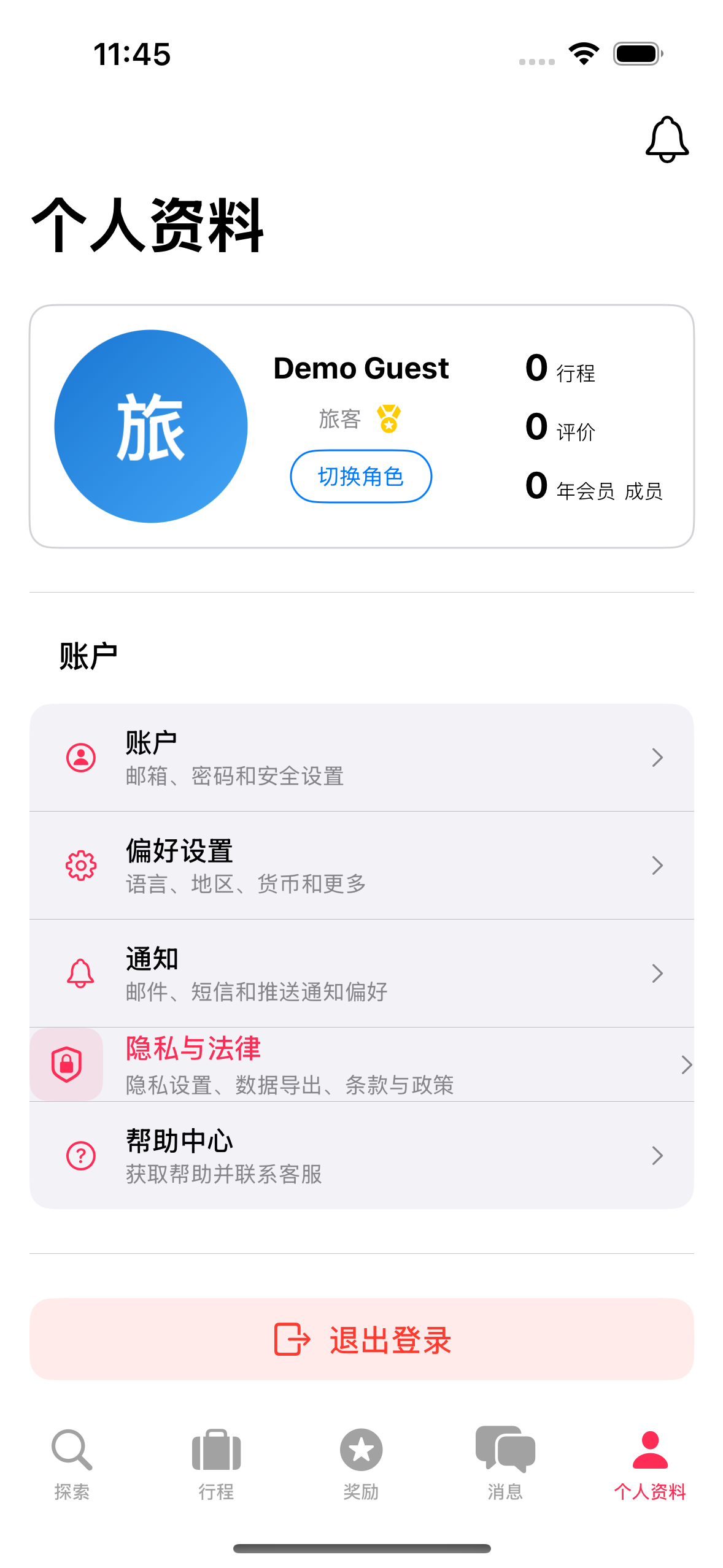
View Profile: 1. Tap Profile tab (person icon) 2. See: photo, name, role badge, stats (Trips, Reviews, Member duration) 3. Verification checkmark displayed if email or phone verified
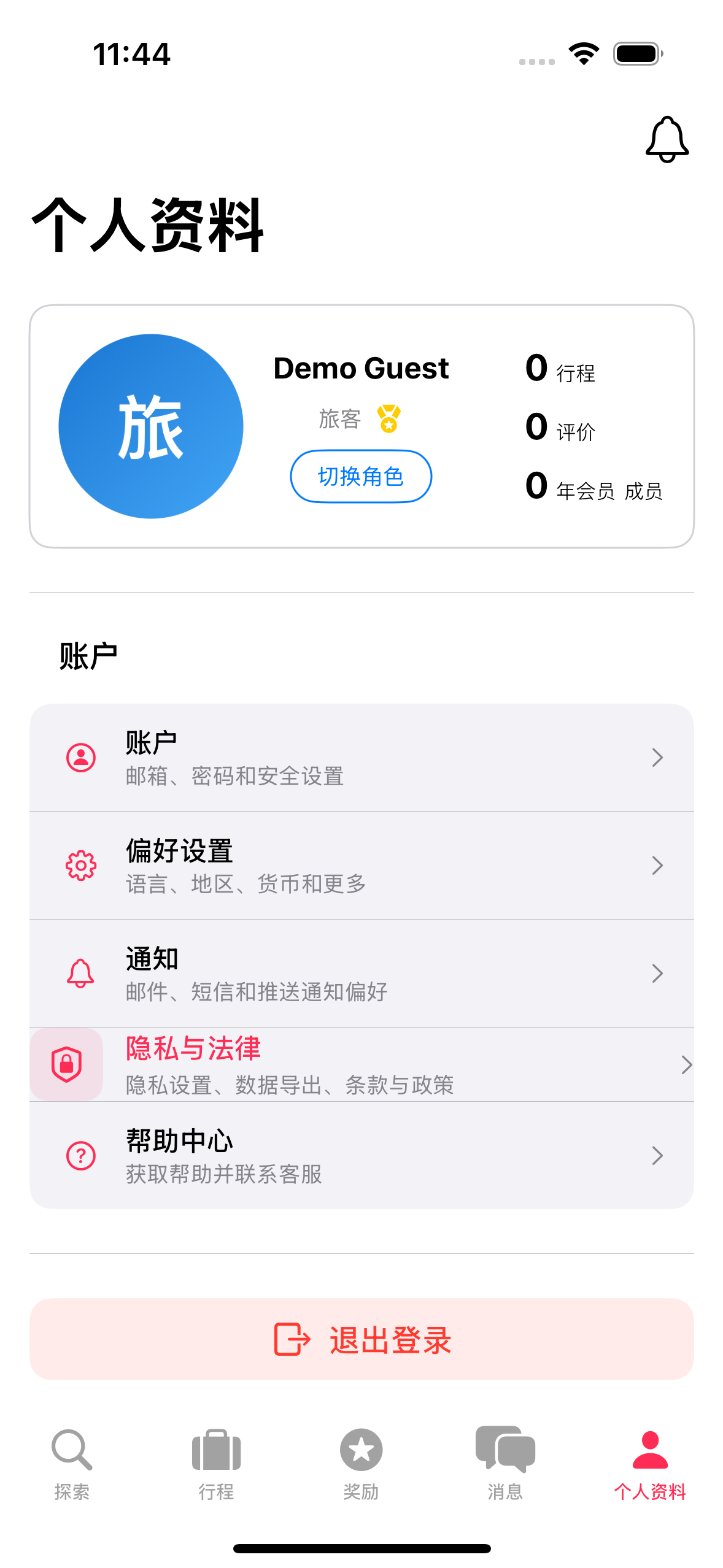
Edit Profile: 1. Tap profile photo (avatar) 2. Edit: photo, name, phone, bio (500 char max), interests, languages (hosts only) 3. Languages displayed with country flag icons (🇬🇧, 🇪🇸, 🇫🇷, etc.) 4. Tap Save Changes
3.1.2 Notification Settings
Access: Profile → Notifications
Configure Notifications: - Email Notifications - Toggle on/off - Push Notifications - Toggle on/off - SMS Notifications - Toggle on/off
Settings apply to all notification types including messages, bookings, tasks, and system updates.

3.1.3 Account Settings
Access: Profile → Account
Account Information: - Email - Update (Coming soon) - Password - Change password (Coming soon) - Two-Factor Authentication - Enable 2FA (Coming soon) - Connected Accounts - Apple, Google status (Coming soon)
Verification:
Verification badges help build trust with other users. View your verification status:
- Email Verification - Green checkmark if verified, “Not verified” if not
- Phone Verification - Green checkmark if verified, “Not verified” if not
- ID Verification (Hosts only) - Green checkmark if verified, “Optional” if not
Account Management: - Delete Account - Permanent deletion with password confirmation (30-day grace period)
3.1.4 Preferences
Access: Profile → Preferences
Display Settings: - App Language - English, Chinese, Spanish, etc. (affects UI text) - Time Format - 12-hour or 24-hour - Search Radius - Default radius for map searches (1-100 miles)
Account Behavior: - Default Login Role - Choose which role you start with on login - Shows all your available roles: Guest, Host, Co-Host, Cleaner - Only shown for users with multiple available roles - Determines your default tab bar and dashboard on sign-in - Can be changed anytime, persists across logins - Automatically falls back to Guest if you lose access to selected role
Region & Currency: - Region - Select your country (🇺🇸, 🇨🇳, 🇬🇧, etc.) - Currency - Automatically set based on region (USD, CNY, EUR, etc.) - Reset to Auto-Detect - Automatically detect region from device (shown if manually set)
Region detection uses your device settings and can be manually overridden. Currency is read-only and automatically matches your selected region.

3.1.5 Privacy & Legal
Access: Profile → Privacy & Legal
Status: Coming soon
This section will include: - Privacy settings (profile visibility, location sharing) - Data export and management - Legal documents (Terms of Service, Privacy Policy)
Note: Currently, legal documents can be viewed during sign-up or from the Help Center.
3.1.6 Help Center
Access: Profile → Help Center
Available Options: - About - View app information and version - Feedback - Share feedback, report bugs, request features
Coming Soon: - FAQ - Frequently asked questions - Contact Support - Email and chat support - User Guides - How-to guides and tutorials

3.1.7 Feedback
Access: Profile → Help Center → Feedback
Share Your Feedback:
Help us improve Peapod by sharing your experience, suggestions, or reporting issues.
How to Submit: 1. Tap Profile tab 2. Go to Help Center 3. Tap Feedback 4. Select category (optional): Bug Report, Feature Request, General Feedback, User Experience, Performance, Security, etc. 5. Enter title (required) 6. Write detailed description (required) 7. Attach screenshots (optional, up to 3 photos) 8. Tap Submit Feedback
What’s Included: - Your feedback is automatically tagged with platform info (device, OS version, app version) - All submissions tracked with unique ID - View your feedback history anytime
Response Time: - All feedback reviewed within 48 hours - Critical bugs prioritized immediately - Feature requests considered for future updates

3.2 Messaging System
Access: Tap Messages tab (bubble icon)
Features: - Conversations sorted by most recent - Unread count badge - Read receipts and typing indicators - Image sharing (camera icon) - Message templates (hosts/co-hosts) - Search conversations
Send Messages: 1. Open conversation 2. Type message 3. Tap Send (paper plane icon) 4. See status: sending → sent → read


Role-Specific Access: - Guests - Message hosts about bookings - Hosts - Message guests, co-hosts, cleaners - Co-Hosts - Message guests (assigned properties only) - Cleaners - Message hosts (about tasks) - Curators - Message hosts (about listings) - Admins - Message any user
3.2.1 Message Filtering by Role
Messages automatically filter based on your role and assigned properties. You only see conversations relevant to your role.
Host View (All Properties): - Sees ALL conversations across owned listings - Toggle filter: “All Properties” or select specific property - Full message history (including messages before co-hosts joined)
Co-Host View (Assigned Properties Only): - Sees conversations ONLY for properties they co-host - Property filter auto-populated with assigned properties - Cannot see conversations for unassigned properties - Example: If co-hosting 2 of 5 properties, sees only those 2
Cleaner View (Limited/None): - Generally don’t see guest messages - Can send messages to property host about issues - Cannot participate in guest conversations
Guest View: - Sees conversations for their bookings only - Message hosts about confirmed or pending bookings
4. For Guests
See Guest Guide for complete documentation.
What Guests Can Do: - 🔍 Browse and search properties with advanced filters - 📅 Book stays with secure payment - 💬 Message hosts before and during stay - ⭐ Leave reviews with photos (up to 5) - 🎁 Earn loyalty points (1% of booking value) - 📱 Manage trips and bookings - 👥 Refer friends for rewards
5. For Hosts & Co-Hosts
See Host & Co-Host Guide for complete documentation.
What Hosts Can Do: - 🏠 Create and edit listings - 💰 Set pricing and availability - 📊 Manage bookings (accept/decline) - 👥 Invite co-hosts and cleaners - 💵 Track earnings and request payouts - 📧 Use message templates - 🏅 Earn quality badges (Superhost, etc.)
What Co-Hosts Can Do: - ✏️ Edit listings (except pricing) - 💬 Message guests (assigned properties) - 📅 Update calendar - 📊 View bookings - ⚠️ Cannot: change pricing, approve bookings, access payouts
6. For Cleaners
See Cleaner Guide for complete documentation.
What Cleaners Can Do: - 📋 View assigned cleaning tasks - ✅ Mark tasks complete - 📸 Upload completion photos - ⚠️ Report issues to hosts - 📅 Manage availability schedule - 💬 Message hosts about tasks
7. For Curators
See Curator Guide for complete documentation.
What Curators Can Do: - 📋 Review listing submissions - ✅ Approve or reject properties - 💬 Request improvements from hosts - 📊 Monitor quality standards - 📧 Message hosts about listings - 📈 Track review performance
8. For Admins
See Admin Guide for complete documentation.
What Admins Can Do: - 👥 Manage users (suspend, delete, verify) - ⚙️ Configure platform settings - 📊 View analytics and reports - 🎫 Handle support tickets - 🔧 Configure loyalty program - 💰 Set fees and commissions - 🏥 Monitor platform health
9. Planned Features
Q1 2026
- WeChat Sign In (pending developer account)
Q2 2026
- WhatsApp Sign In (global markets)
- Modify booking (change dates/guests)
- Group bookings
- Host analytics dashboard (advanced)
- Guest verification (ID upload)
- Video tours
Q3 2026
- Experiences (local activities) - Not available in CN Release 1.0
- Long-term stays (monthly discounts)
- Corporate travel accounts
- Gift cards
Q4 2026
- AR room preview
- Virtual check-in
- Smart home integration
- Concierge services
10. Troubleshooting & FAQ
Common Issues
Login Problems: - Check email spelling - Try “Forgot Password” - Try social login (Apple, Google) - Update iOS to latest version - Reinstall app if needed
Search Problems: - Check location spelling - Try broader search (city vs neighborhood) - Remove date filters - Clear all filters - Refresh results
Booking Problems: - Check card details and funds - Try Apple Pay - Contact your bank - Check internet connection - Contact support with booking reference
Performance Issues: - Close and reopen app - Restart device - Update app to latest version - Clear app cache - Check internet speed
Frequently Asked Questions
Q: Is my payment information secure? A: Yes. We use Stripe (PCI-compliant). Card details encrypted, never stored. Apple Pay uses biometric authentication.
Q: When will I be charged? A: Authorization hold immediately. Charge captured 24h before check-in. Refunds follow cancellation policy.
Q: How do I cancel a booking? A: Trips → Select booking → “Cancel Booking”. Refund depends on host’s cancellation policy (Flexible, Moderate, or Strict). See Guest Manual Appendix D for detailed refund percentages and timing.
Q: What if property doesn’t match listing? A: Document with photos, contact host, report to support. May be eligible for refund.
Q: How do I become a host? A: Sign up with host role, create listing, submit for review. Approval within 24-48 hours.
Q: What fees does Peapod charge? A: CN Release 1.0: Guests pay 0% (no service fee). Hosts pay tier-dependent fees: Silver 13%, Gold 12.5%, Platinum 12%, Diamond 11.5%. See Host Manual Appendix J for details.
Q: Can I modify a booking? A: Not currently - must cancel and rebook. Feature coming Q2 2026.
Q: How do loyalty points work? A: Earn 1% of booking value. 100 points = $1. Redeem on future bookings. CN Release 1.0: Points can ONLY be used for booking discounts - no cash withdrawal available. Points expire after 24 months of inactivity.
Q: Instant book vs request to book? A: Instant book confirms immediately. Request requires host approval (up to 24h).
Q: How to contact support? A: In-app: Help → Contact Support (24/7 chat). Email: support@peapod.com.
11. Appendix: Version History
For complete version history, see Version History Summary.
Latest Releases
v1.0.0 (November 22, 2025) - CN Release 1.0 - Fee Model Change: Guests pay 0% service fee - Host Tier Fees: Silver 13%, Gold 12.5%, Platinum 12%, Diamond 11.5% - Co-Host Role Enabled: Full co-host functionality for property management - Phone/SMS Verification: Identity verification via Twilio SMS (US and China +86) - Cancellation Policy Appendix: Detailed Flexible/Moderate/Strict policies with refund tables - Loyalty Restrictions: Points for booking discounts only (no cash withdrawal) - Cleaner Photo Requirements: Mandatory 1 photo per room - Curator SLA: Formal service level agreements (24h target, 48h max) - Experiences Deferred: Not available in CN Release 1.0
v0.16.2 (November 5, 2025) - Profile Page Reorganization & Primary Role - Verification badges moved to Account Settings submenu - Region & Currency integrated into Preferences (flattened UI) - Flag icons added to languages in Edit Profile - Improved profile navigation structure - NEW: Primary Role setting in Preferences - choose default role on login (Guest or Host)
v0.14.9 (October 28, 2025) - Photo Reviews - Upload up to 5 photos with reviews - Photo gallery in review cards - Fixed listing ratings display - Better error handling
v0.14.8 (October 27, 2025) - Sort & Ratings - 6 sort modes: Recommended, Price, Nearest, Top Rated, Most Popular, Best Value - Bayesian rating system prevents gaming - Simplified sort UI
v0.14.7 (October 26, 2025) - Map Enhancements - Search & AI search buttons on map - Inline radius slider (1-50 miles) - PostGIS backend integration
v0.14.0-0.14.6 - Smart Pricing, Automated Emails, Search Circle, Database Views
v0.13.9 (October 19, 2025) - ULTRA SOLUTION - Database views for all tables - Automatic snake_case → camelCase transformation - 90% bug reduction
v0.13.3-0.13.8 - Co-Hosting, Badges, Localization, Filter Bookmarks
See Version History Summary for complete history.
End of User Manual
For latest updates, visit: [Documentation Site] For support: support@peapod.com For community: [Forum Link]