Peapod User Manual - Curator Guide
Version: v0.19.2 Last Updated: December 27, 2025 Platform: iOS (iPhone, iPad)
What’s New in v0.18.8 (Slice V): - ✅ Multi-Unit Properties - Hotels, Hostels, Boutique Hotels, and Resorts now support room/bed types (see Section 7.4.5) - ✅ Room Type Validation - New validation rule: multi-unit properties require at least one active room/bed type before approval - ✅ Two-Tier Amenities - Understand shared vs room-specific amenities when reviewing Hotels/Hostels
Previous (CN Release 1.0): - ✅ Two-Tier Edit Review System - Review critical edits to active listings before they go live (all other edits auto-approve) - ✅ Edit Reviews Queue - New section in Listings tab for reviewing listing edits (Critical changes only) - ✅ No Draft Status - Listings now go directly from local device to “Pending Review” when submitted - ✅ Active Listings Stay Visible - Pending critical edits don’t make listings invisible; guests see old approved data until you approve changes - ✅ Immediate Resubmission - Hosts can resubmit rejected listings immediately after fixing issues (no waiting period) - ✅ Badge Notifications - Listings tab badge shows count of pending new listings + critical edits - ✅ Formal SLA Commitments - Clear response time targets for reviews, safety issues, and disputes
Note: Advanced AI features (AI Pre-Screening, AI Listing Optimizer) remain in “Coming Soon” status and are not yet implemented.
7. For Curators
7.1 Curator Overview
As a curator, you: - 📋 Review New Listings - Approve/reject new property submissions - 🔍 Review Edits - Approve critical changes to active listings (bedrooms, bathrooms, capacity, amenities) - ✏️ Request Improvements - Guide hosts to enhance listings - 📊 Monitor Quality - Ensure platform standards maintained - 💬 Support Hosts - Provide feedback and guidance - 🎯 Maintain Standards - Uphold Peapod’s quality promise
Two Types of Reviews: 1. New Listing Approvals - Host submits new property, you approve/reject/request edits 2. Edit Reviews - Host edits critical information on active listing, you approve changes before they go live (all other changes auto-approve)
Key Features: - 🧠 Smart Review Assignment - Listings are automatically distributed to available curators based on specialization, region, and past performance - 🔁 Auto-Sync with Listing Pipeline - New host submissions instantly appear in your review queue - 🧩 Improvement Templates 2.0 - Modular message blocks speed up feedback creation and improve clarity - ⭐ Host Feedback on Curator - Hosts can rate curator feedback quality after resubmission - 🔔 Smart Notifications - Real-time alerts for new listings, host updates, and resubmissions - 🤖 AI Pre-Screening (Future) - Automatic pre-review scan for photo quality, safety, and missing info
7.2 Curator Navigation
Bottom Navigation (5 tabs): 1. Dashboard (chart.bar.fill icon) - Overview, pending reviews, performance 2. Listings (house.fill icon) - Review new listings AND edit reviews (two sections) 3. Availability (calendar icon) - Manage curator schedule 4. Messages (message icon) - Communications with hosts 5. Profile (person icon) - Profile settings
How It Works: - Tap any tab to switch views - Active tab highlighted in pink - Badge shows counts: - Listings: Combined count of new listings + critical edits awaiting approval - Messages: Number of unread messages - Tasks appear instantly upon listing submission or edit (Auto-Sync)
Listings Tab - Two Review Queues: The Listings tab contains two sections accessible via filters or separate views: - New Listing Approvals: New listings in “Pending Review” or “Request Edits” status - Edit Reviews: Critical and medium priority edits to active listings
7.3 Curator Dashboard
Location: Main tab → “Dashboard” (chart.bar.fill icon)
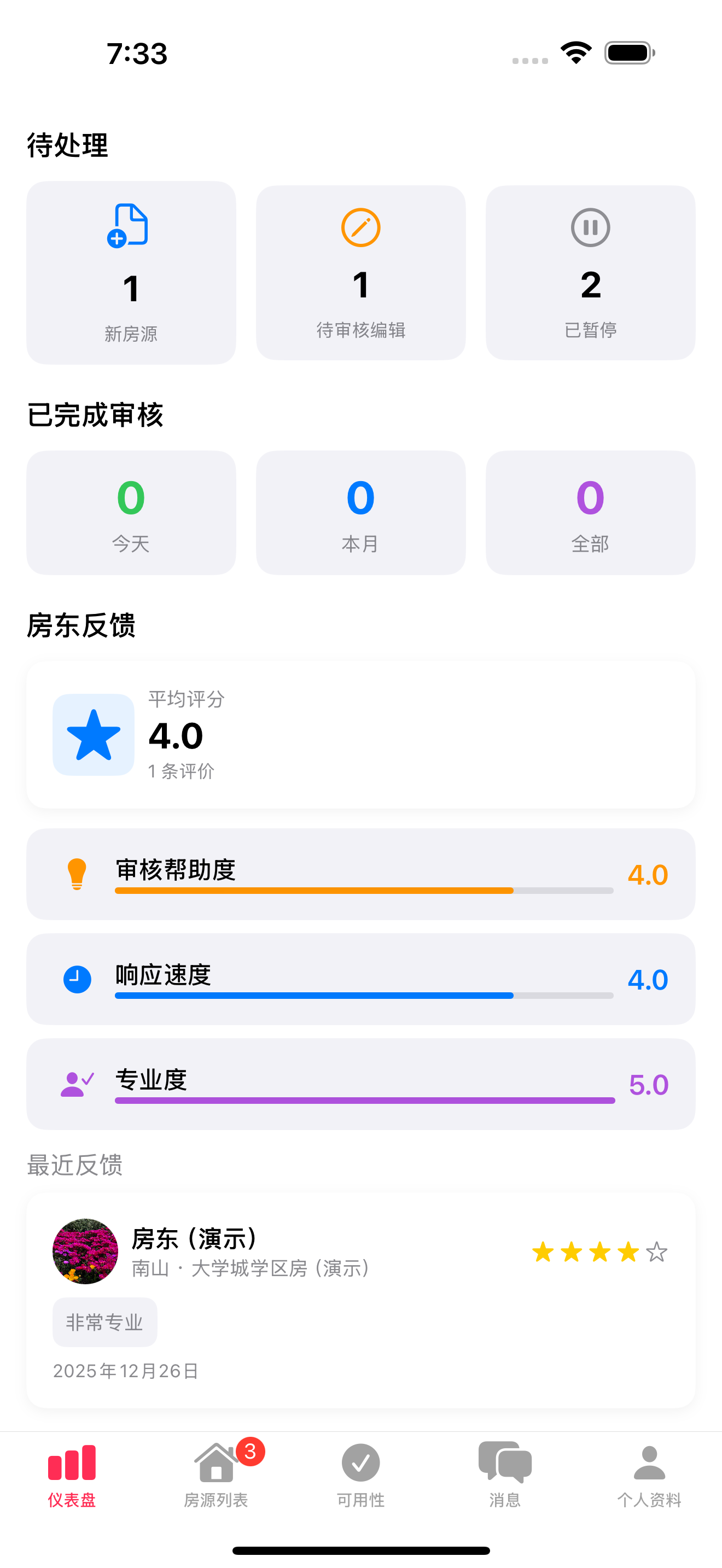
The dashboard provides three core metrics at a glance:
7.3.1 Work Queue
Shows current items needing your attention:
| Metric | Description | Icon |
|---|---|---|
| New Listings | New submissions awaiting first review | 📄 Blue |
| Pending Edits | Critical edits on active listings awaiting approval | ✏️ Orange |
| Paused | Listings paused by curator or host | ⏸️ Gray |
7.3.2 Reviews Completed
Track your review productivity:
| Period | Description |
|---|---|
| Today | Reviews completed today (Green) |
| This Month | Reviews completed this month (Blue) |
| All Time | Total reviews in your career (Purple) |
7.3.3 Host Feedback
See how hosts rate your review quality (scroll down to view):
| Metric | Description |
|---|---|
| Average Rating | Overall rating from hosts (1-5 stars) |
| Total Ratings | Number of feedback submissions received |
| Helpfulness | How helpful your review feedback was |
| Response Speed | How quickly you responded |
| Professionalism | How professional your communication was |
| Recent Feedback | Shows last 3 host feedback entries |
💡 Tip: High ratings help you receive more listing assignments and recognition
7.4 Review Listings
7.4.1 Review Queue
What You’ll See: - List of pending listings sorted by urgency and submission date (oldest first) - Listings automatically appear via Auto-Sync with Listing Pipeline - Submission date for each listing - “New” badge if submitted today - “Smart Assigned” badge shows system-based assignment
How to Access: 1. From Curator Dashboard, tap “Pending Reviews” 2. See list of listings to review 3. Tap listing to begin review
Queue Features: - Auto-refresh when new listings arrive - Priority indicators for urgent reviews - Estimated review time per listing
7.4.2 Review Process
Step 1: Property Overview
Tap a listing from the queue to see all details: - Photos - All images uploaded by host - Title and description - Property name and detailed description - Amenities - Listed features and services - House rules - Check-in/out times, policies - Pricing - Base price, cleaning fees, discounts - Location - Address and map preview - Preview - How listing appears to guests
Step 2: Quality Checklist
Review against platform standards (see Section 7.6 for complete criteria): - ✅ Photos are high-quality (bright, clear, accurate) - ✅ Description is detailed and accurate (500+ words recommended) - ✅ Amenities match photos - ✅ Pricing is reasonable for market - ✅ House rules are clear and complete - ✅ Location is accurate - ✅ No safety concerns - ✅ Meets Peapod quality standards
AI Pre-Screen Suggestions (Future): - System suggests likely issues based on automated scan - Highlights missing information or low-quality photos - Flags potential safety concerns
7.4.3 Understanding Listing Status Workflow
As a curator, you control listing status through your review decisions. Here’s the complete workflow from your perspective:
Listing Status Reference:
| Status | What It Means | Your Actions Available |
|---|---|---|
| Pending Review | NEW listing submitted, awaiting your review | Review → Approve, Request Edits, or Reject |
| Request Edits | You sent NEW listing back for improvements | Wait for host to fix → Review again |
| Active | You approved, live and bookable on platform | Monitor quality, can pause if issues found, review edits to listing |
| Active (Pending Edits) | Active listing with critical edits awaiting your approval | Review edits → Approve or Reject changes |
| Paused by Host | Host temporarily disabled it | No action needed (will auto-reactivate when host unpauses) |
| Paused by Curator | You found issue with live listing | Host must fix → Resubmits → You re-review |
| Rejected | You blocked this listing due to serious issues | Host can fix issues and resubmit immediately, or appeal via chat |
| Archived | Host permanently removed it | No action needed |
Important Notes:
No Draft Status: Hosts create listings locally on their device. Once submitted, listings go directly to “Pending Review” status. There is no draft state in the database.
Active Listings with Pending Edits: When a host edits critical information on an active listing (bedrooms, bathrooms, capacity, property type, etc.), the listing stays active and bookable. Guests continue to see the old curator-approved information until you approve the changes. This protects guests from seeing unverified changes. See section 7.4.4 for the edit review workflow.
Complete Review Workflow for NEW Listings:
Host submits NEW listing → Status: Pending Review → Appears in your “New Listing Approvals” queue
You review → Three paths:
Path A: Request Edits (Fixable Issues)
- You select “Request Changes” → Status: Request Edits
- Host receives detailed feedback
- Host makes improvements and resubmits immediately → Status: Pending Review (back to you)
- You review again → Approve or Request more changes
Path B: Approve (Quality Standards Met)
- You select “Approve” → Status: Active
- Listing goes live immediately
- Guests can search and book
- You can monitor for future issues
Path C: Reject (Serious Issues)
- You select “Reject” → Status: Rejected
- Host receives detailed rejection reason
- Host can fix issues and resubmit immediately (no waiting period)
- Or host can appeal via chat if they believe rejection was a mistake
- Rejection is for this specific listing submission, not permanent ban
Active Listing Monitoring:
- If you find issue with live listing → Pause it → Status: Paused by Curator
- Host must fix issue and request re-review → Status: Pending Review (back to you)
- You review fixes → Approve to make Active again
Your Two Core Actions Explained:
“Request Edits” = Fixable Issues ✏️ Use for quality improvements needed: - Poor photo quality or insufficient count - Description too brief or missing details - Incomplete amenities list - Unclear house rules - Pricing needs adjustment - Location details incomplete
“Reject” = Serious Issues ❌ Use for issues that need significant fixes before approval: - Fraudulent listing (fake photos, property doesn’t exist) - Illegal activity or policy violations - Duplicate listing already on platform - Safety hazards that cannot be remediated - Property not suitable for platform - Wrong platform (commercial property, hotel, etc.)
After Rejection: - Host can fix issues and resubmit immediately - No waiting period, no penalty - Host can appeal via chat if they believe rejection was a mistake - You can review appeal and reconsider if issues were misunderstood - Rejection is for this specific submission, not a permanent ban on the property
Step 3: Decision
Choose one of three actions:
Option 1: Approve Listing ✅
How to Approve: 1. Verify all checklist items pass quality standards 2. Tap “Approve” button (green) 3. Confirmation alert appears: “Approve this listing?” 4. Tap “Confirm” 5. Listing status changes to “Active” 6. Host receives approval notification immediately 7. Listing appears in search results immediately 8. Your review count increments
When to Approve: - All quality standards met - Photos are professional and accurate - Description is detailed and helpful - No safety concerns - Amenities accurately represented - Pricing is competitive
Option 2: Request Changes 🟧
How to Request Changes: 1. Identify specific quality issues that need improvement 2. Tap “Request Changes” button (orange) 3. Use Improvement Templates 2.0: - Select predefined issue categories - Choose modular feedback blocks: - Photo Feedback Block - “Add at least 3 photos per bedroom with good lighting” - Description Feedback Block - “Add details about nearby attractions and neighborhood” - Safety Feedback Block - “Include visible smoke detector or first aid kit in photos” - Amenity Feedback Block - “Verify all listed amenities are visible in photos” - Pricing Feedback Block - “Adjust pricing to align with comparable properties in area” - Combine multiple blocks as needed 4. Add custom comments for specific issues not covered by templates 5. Tap “Send Feedback to Host” 6. Listing status changes to “Changes Requested” 7. Host receives notification with detailed feedback
Common Issues to Request Changes: - Photos need improvement: - Not enough photos (minimum 5, recommend 15-20) - Poor lighting or blurry images - Missing key rooms (bedrooms, bathrooms, kitchen) - Need exterior shots - Description too short: - Less than 500 words - Missing neighborhood information - No mention of nearby attractions - Lacks unique property features - Missing amenities: - Claimed amenities not visible in photos - Incomplete amenity list - No mention of WiFi, parking, or kitchen - Pricing unclear: - No cleaning fee listed - Discount structure confusing - Significantly above/below market rate - House rules incomplete: - No check-in/check-out times - Missing pet policy - No smoking policy stated - Quiet hours not specified - Location issues: - Map pin incorrect - Address incomplete - Parking instructions missing - Safety concerns: - No visible smoke detectors - Potential hazards in photos - Missing emergency contact info
Feedback Best Practices: - ✅ Be specific (e.g., “Add photos of bedroom” not “Need more photos”) - ✅ Be constructive and helpful - ✅ Explain why change is needed - ✅ Provide examples if possible - ✅ Use templates for efficiency and consistency - ✅ Attach reference photos if helpful - ❌ Don’t be vague or generic - ❌ Don’t use harsh language - ❌ Don’t reject when changes would suffice
Host Feedback System: After host resubmits, they can rate your feedback clarity (1-5⭐). This helps improve your curator performance and guides future feedback quality.
Option 3: Reject Listing ❌
IMPORTANT: Use Rejection Thoughtfully! Most issues can be fixed through “Request Changes”. Use rejection for serious issues that require significant fixes before approval.
How to Reject: 1. Determine listing has serious issues (see rejection reasons below) 2. Tap “Reject” button (red) 3. Select rejection reason from dropdown (matches categories below) 4. Write detailed explanation (required, minimum 100 words): - Explain specifically what is wrong - Reference evidence (specific photos, descriptions, etc.) - Explain what needs to be fixed - Inform host they can resubmit immediately after fixing issues 5. Tap “Confirm Rejection” 6. Confirmation alert: “Are you sure you want to reject?” 7. Tap “Confirm” 8. Listing status changes to “Rejected” 9. Host receives notification with detailed reason 10. Host can fix issues and resubmit immediately (no waiting period)
Rejection Reasons Taxonomy:
Only reject for these fundamental problems:
1. Fraudulent Listing 🚨 - Stock photos or images stolen from other websites - Photos clearly from different properties - Property doesn’t exist at stated address - Verified scam indicators - Host using fake identity or stolen credentials - Example: “Photos are stock images from Shutterstock, not actual property”
2. Illegal Activity or Policy Violations ⚖️ - Illegal short-term rental in jurisdiction that bans them - Property used for illegal purposes mentioned in listing - Discriminatory policies violating fair housing laws - Adult-only content or services - Promotes illegal activities - Example: “City has ban on short-term rentals; cannot approve”
3. Duplicate Listing 🔁 - Property already listed on Peapod under different account - Same host has listed same property multiple times - Verified to be existing active listing - Example: “This property already exists as Listing #12345”
4. Property Not Available ❌ - Property is not actually available for rent - Under construction or renovation indefinitely - Owner does not have authority to rent - Property is condemned or uninhabitable by law - Example: “Building permit shows property condemned by city”
5. Wrong Platform / Property Type 🏢 - Commercial property (office, retail, warehouse) - RV, boat, or vehicle (not traditional housing) - Time-share or fractional ownership - Example: “This is a commercial office space, not residential”
Note: Hotels, Hostels, Boutique Hotels, and Resorts are now supported on Peapod with multi-unit room/bed types. See Section 7.4.5 for review guidelines specific to these property types.
6. Unremediated Safety Hazards ⚠️ - Severe structural damage visible in photos - Electrical hazards that pose immediate danger - Toxic mold or environmental contamination - Building code violations that cannot be fixed - Unsafe location with documented crime issues - Example: “Visible exposed wiring and ceiling collapse in photos”
When to Reject vs. Request Edits:
| Reject | Request Edits |
|---|---|
| Fraudulent photos | Poor quality photos |
| Illegal rental | Missing amenities |
| Duplicate listing | Incomplete description |
| Property condemned | Pricing too high/low |
| Commercial property | House rules unclear |
| Severe structural damage | No smoke detector visible |
| Scam listing | Location details incomplete |
Resubmission & Appeal Process: - Host can resubmit immediately after fixing issues - No waiting period, no penalty - Host receives detailed feedback explaining what needs to be fixed - After fixing issues, host can resubmit for review - Listing returns to “Pending Review” status in your queue - You review the fixes and approve or provide additional feedback - Appeal Option: If host believes rejection was a mistake, they can message you via chat - You can reconsider if there was a misunderstanding - If rejection stands, explain clearly why and what needs to change
Documentation Requirements: When rejecting, document evidence: - Screenshot specific photos showing fraud/issues - Note specific policy violations - Reference comparable listings for duplicates - Cite building codes or regulations if applicable - Save all documentation in case of appeal
7.4.4 Reviewing Edits to Active Listings: Three-Tier System
Once a listing is approved and active, hosts can make edits. The system automatically categorizes edits by urgency and routes them appropriately.
Important: Active listings stay visible and bookable even with pending critical edits. Guests see the old curator-approved information until you approve changes. This protects guests from seeing unverified updates.
Edit Categories and Your Role:
🔴 Critical Edits (Require Your Approval)
These fundamentally define what guests are booking. Changes require your approval before going live.
Examples: - Property type (House → Apartment) - Number of bedrooms - Number of bathrooms - Max guest capacity - Location/Address - Major amenities (Pool, Hot tub, Parking, AC/Heating, Kitchen, Washer/Dryer, Accessibility features)
What Happens: 1. Host makes critical change (e.g., bedrooms 2 → 3) 2. Listing stays Active - Guests still see old approved data (2 bedrooms) 3. Edit appears in your “Edit Reviews” queue with “Critical” badge 4. You receive notification: “Critical edit awaiting review” 5. You review within 24 hours (SLA)
Your Decision: - Approve: Changes go live immediately, guests now see new information (3 bedrooms) - Reject: Listing stays with old information (2 bedrooms), host sees rejection reason and can resubmit immediately
Review Process: 1. Open edit from “Edit Reviews” queue 2. See side-by-side comparison: - Old: 2 bedrooms (currently shown to guests) - New: 3 bedrooms (proposed change) 3. Verify claim matches photos/reality 4. Tap “Approve” or “Reject” with reason 5. Edit record updated, host notified
Important: If guest books during pending period, they book based on OLD approved information (e.g., 2 bedrooms). Host must honor what guest booked. After you approve, future bookings show new information.
✅ Auto-Approved Changes (No Review Needed)
All other changes go live immediately without your review.
Examples: - Photos/Videos - Title changes - Description changes - Price changes - Cleaning fee adjustments - Cancellation policy changes - Minimum/maximum stay requirements - Minor amenity additions/removals
What Happens: 1. Host makes medium priority change (e.g., price $200 → $250) 2. Change goes live immediately 3. Listing stays Active 4. Guests see new information right away ($250) 5. Edit appears in your “Weekly Review Queue” for async review 6. You review during weekly quality check 7. If issue found, you message host to adjust
Your Role: - Review weekly (not urgent) - Check for quality issues - Message host if adjustments needed - Auto-marked as reviewed after 7 days if no action
🟢 Low Priority Edits (No Review Needed)
Operational details that don’t affect booking decisions. Updates go live immediately.
Examples: - WiFi password - Door codes/check-in instructions - Local recommendations - Neighborhood guide - Parking instructions - Trash/recycling info - Calendar availability
What Happens: 1. Host makes low priority change 2. Change goes live immediately 3. No curator review needed 4. Logged in audit trail for compliance
Your Role: - No action required - System handles automatically
Your Two Queues as a Curator:
Both queues are accessible from the Listings tab with filters or separate sections:
1. New Listing Approvals - New listings in “Pending Review” status - Listings in “Request Edits” status (resubmissions) - Listings you paused (“Paused by Curator” status)
2. Edit Reviews - Critical edits to active listings requiring approval - Organized by urgency and age (oldest critical first) - Auto-approved edits do not appear here (they go live immediately)
Listings Tab Features: - Stats: Total pending, Critical count, Medium count, Oldest age - Filters: [New Listings] [Edit Reviews] or [All] [Critical] [Medium] - Edit Cards: Show listing name, host, category, changed fields, age - Badge: Tab shows combined count of pending new listings + critical edits
Example Edit Card:
🔴 Downtown Loft · Host: Jane Smith
    Active listing · 3 days pending
    Changes: bedrooms (2 → 3)
    Category: CRITICAL
    [Review Changes →]
Review Best Practices:
Critical Edits: - ✅ Review within 24 hours (high priority) - ✅ Verify changes match photos - ✅ Check for fraud (e.g., claiming features that don’t exist) - ✅ Consider guest impact (bookings honored based on old data) - ✅ Approve quickly if changes are legitimate - ✅ Reject with clear reason if misleading
Auto-Approved Changes: - ✅ No review needed - changes go live immediately - ✅ Monitor listings during regular quality checks - ✅ Message host if you notice quality issues - ✅ Pause listing if serious problems found
Communication: - ✅ Explain why you rejected critical edit - ✅ Be specific about what needs verification - ✅ Host can resubmit immediately after fixing - ✅ Thank host for keeping listing up to date
7.4.5 Reviewing Multi-Unit Properties (Hotels/Hostels/Boutique Hotels/Resorts)
NEW IN SLICE V: Hotels, Hostels, Boutique Hotels, and Resorts now support multi-unit booking with room/bed types. This section covers special considerations when reviewing these property types.
Understanding Multi-Unit Properties:
| Property Type | Unit Term | Typical Units | Booking Model |
|---|---|---|---|
| Hotel | Room | “Deluxe King Room”, “Standard Double” | Book 1+ rooms |
| Hostel | Bed | “Bunk in 6-Bed Dorm”, “Female Dorm Bed” | Book 1+ beds |
| Boutique Hotel | Room | “Garden Suite”, “Penthouse” | Book 1+ rooms |
| Resort | Room/Villa | “Ocean View Suite”, “Beach Villa” | Book 1+ units |
Key Difference: Unlike Houses/Apartments where guests book the entire property, Hotels/Hostels allow multiple guests to book different room/bed types on the same dates.
Validation Rule (REQUIRED):
⚠️ Multi-unit properties CANNOT be approved unless they have at least one active room/bed type.
What to Check: 1. Open the listing review 2. Scroll to “Room Types” or “Bed Types” section 3. Verify at least one room/bed type exists 4. If empty → Request Edits with message: > “Your [Hotel/Hostel] listing requires at least one room or bed type before approval. Please add your room types in the listing editor under ‘Room Types’.”
Room/Bed Type Review Checklist:
For each room/bed type, verify:
| Field | What to Check |
|---|---|
| Name | Descriptive (e.g., “Deluxe King Room”, not “Room A”) |
| Total Units | Reasonable number (not 0, not 9999) |
| Max Guests | Appropriate for room size |
| Price | Within market range for type |
| Description | Accurate, helpful |
| Room Amenities | Match photos, don’t duplicate shared |
Two-Tier Amenities System:
Multi-unit properties have two levels of amenities:
| Amenity Level | Where Set | Applies To | Example |
|---|---|---|---|
| Shared Amenities | Listing Editor → Amenities | All room types | Pool, Gym, Restaurant, Lobby WiFi |
| Room-Type Amenities | Room Type Editor | Specific room only | Balcony, Minibar, Private Bathroom |
What to Verify: - ✅ Shared amenities are property-wide features (guests can access regardless of room type) - ✅ Room-type amenities are specific to that room/bed type - ❌ No duplication (if Pool is shared, shouldn’t be in each room type) - ❌ Room-type amenities shouldn’t include property features
Search Impact (FYI): Guest searches match room types where shared + room amenities include all filtered amenities. If a guest filters for “WiFi + Balcony”, only room types with both (either shared or room-specific) will appear.
Photo Requirements for Multi-Unit:
Listing-Level Photos: - Exterior/building shots - Common areas (lobby, pool, restaurant, gym) - Shared facilities
Room-Type Photos (Recommended): - Each room type should have representative photos - Show bed configuration, bathroom, amenities - Help guests distinguish between room types
What to Check: - Listing has sufficient property photos (min 5) - Room types have photos OR host mentions “rooms similar to photos shown” - Photos match room type descriptions
Common Issues & Resolutions:
| Issue | Resolution |
|---|---|
| No room types defined | Request Edits: “Add at least one room/bed type” |
| Room type price = 0 | Request Edits: “Set pricing for each room type” |
| Total units = 0 | Request Edits: “Set total units available for each type” |
| Room amenities duplicate shared | Request Edits: “Remove duplicates from room amenities” |
| Hostel showing as “room” | Request Edits: “Hostels should use ‘bed’ as inventory unit” |
| No description on room types | Request Edits: “Add descriptions to help guests choose” |
Approval Checklist for Multi-Unit:
Before approving a Hotel/Hostel/Boutique Hotel/Resort:
7.5 Monitor Re-Submissions
What You’ll See: - Listing with “Re-submission” badge in review queue - Original feedback notes you provided - Host’s response comments - Changes made by host (highlighted) - Notification when host re-submits
How to Review Re-Submissions: 1. Host makes requested changes and re-submits listing 2. Listing appears in “Re-Review Queue” (separate from new submissions) 3. You receive notification: “Host has updated [Listing Name]” 4. Review changes made against original feedback 5. Verify all requested issues have been addressed 6. Compare new photos/description with original version 7. Make decision: - Approve if all issues resolved - Request more changes if issues remain - Reject if major problems persist (rare)
Re-Review Best Practices: - ✅ Review within 24 hours of re-submission - ✅ Acknowledge improvements made - ✅ Be consistent with original feedback - ✅ Thank host for making changes - ✅ Approve quickly if standards met - ❌ Don’t add new requirements not in original feedback - ❌ Don’t be overly critical if most issues fixed
Priority Handling: Re-submissions get higher priority than new listings. Hosts have already invested time in improvements and deserve fast feedback.
7.6 Quality Standards
These are the platform-wide quality standards all listings must meet.
Photo Quality Standards
Requirements: - Well-lit and bright - Natural lighting preferred, no dark shadows - No heavy filters - Accurate colors, minimal editing - Accurate representation - Shows property as it actually looks - Multiple angles - Each room from different perspectives - Professional appearance - Clean, staged, high-resolution - Minimum count - At least 5 photos required, 15-20 recommended
Required Photo Types: - Exterior (front of property, street view) - Living room (multiple angles) - All bedrooms (made beds, clean) - All bathrooms (clean, well-lit) - Kitchen (appliances, counters, sink) - Dining area (if separate) - Outdoor spaces (yard, patio, balcony, pool) - Special features (fireplace, home office, gym)
Photo Red Flags: - ❌ Stock photos or images from other websites - ❌ Extremely blurry or dark images - ❌ Photos clearly from different properties - ❌ Heavy filters hiding property condition - ❌ Cluttered, messy, or dirty spaces - ❌ Visible damage not disclosed
Description Quality Standards
Requirements: - Detailed length - Minimum 500 words, 800-1000 words ideal - Accurate representation - Honest description of property - Unique features highlighted - What makes this property special - Neighborhood information - Local area, attractions, amenities - No spelling/grammar errors - Professional writing quality - Professional tone - Welcoming but not overly casual
What to Include: 1. Property Overview (2-3 sentences) - Property type, size, key selling points 2. Detailed Description (main body) - Room-by-room descriptions - Unique features and highlights - Recent renovations or upgrades 3. The Space - Bedroom configurations - Bathroom count and features - Kitchen amenities - Living areas - Work-from-home setup (if applicable) 4. Guest Access - Which areas guests can use - Shared vs private spaces - Parking availability and instructions 5. The Neighborhood - Walking distance to attractions - Restaurants, shops, entertainment nearby - Public transportation options - Safety and character of area 6. Other Information - Check-in instructions preview - Best for (families, couples, business travelers) - Seasonal highlights
Description Red Flags: - ❌ Less than 300 words (too brief) - ❌ Copy-pasted from other listings - ❌ Excessive typos or grammar errors - ❌ All caps or excessive exclamation marks - ❌ Discriminatory language - ❌ Contact information included (against policy)
Accuracy Standards
Requirements: - Amenities match photos - All listed amenities visible or verified - Room counts accurate - Bedroom/bathroom counts match reality - Location pin correct - Map marker at actual property address - House rules clear - Complete policies stated - Pricing competitive - Within market range for area and size
Common Accuracy Issues: - Listed WiFi but no router visible - Claimed pool but no photos of pool - “3 bedrooms” but only 2 shown in photos - Incorrect address or map pin - Missing check-in/check-out times - Pricing 2x+ market rate without justification
Safety Standards
Requirements: - No visible hazards - No exposed wiring, structural damage, safety risks - Smoke/CO detectors present - Visible in photos or mentioned in description - Fire extinguisher - Should be visible or mentioned - First aid kit - Should be mentioned in amenities - Safe neighborhood - No obvious safety concerns in area - Emergency information - Emergency contact provided
Safety Red Flags: - ❌ Exposed electrical wiring - ❌ Mold or water damage visible - ❌ Broken windows or doors - ❌ No smoke detectors visible - ❌ Unsafe stairs or railings - ❌ Known dangerous neighborhood - ❌ Pool without safety fence (if children allowed)
When in Doubt: If you’re unsure about safety, reject the listing and explain concerns. Safety is paramount - better to be cautious.
7.7 Availability Management
Location: Main tab → “Availability” (calendar icon)
Purpose: Manage your curator schedule, working hours, and capacity to prevent burnout and maintain quality reviews.
7.7.1 Review Capacity
What You’ll See: - Review Capacity Card at top of Availability screen - Current status: “Available” (green) or “At Capacity” (red) - Daily capacity: Progress bar showing “3 / 5 reviews today” - Weekly capacity: Progress bar showing “12 / 25 reviews this week” - Edit button to adjust limits
How Capacity Works: - System tracks how many listings you’ve reviewed today and this week - Daily limit: Default 5 reviews/day (range: 1-50) - Weekly limit: Default 25 reviews/week (range: 1-200) - Counts reset automatically: - Daily count resets at midnight - Weekly count resets every Monday - Status shows “At Capacity” when you reach either daily or weekly limit
How to Edit Capacity: 1. Tap “Edit” button on Capacity Card 2. Sheet appears with sliders: - Max Reviews Per Day: Adjust slider (1-50) - Max Reviews Per Week: Adjust slider (1-200) - Alert Threshold: When to warn you (50%-100%, default 80%) 3. Tap “Save” 4. Capacity card updates with new limits
Capacity Recommendations: - New curators: Start with 3-5 reviews/day, 15-20/week - Experienced curators: 8-10 reviews/day, 40-50/week - Leave buffer: Don’t max out - allow time for re-reviews and questions
What Happens at Capacity: - Status badge turns red: “At Capacity” - System can use this for smart assignment (future) - You can still review listings (no enforcement) - Visual reminder to maintain quality over quantity
7.7.2 Weekly Schedule
What You’ll See: - Weekly Schedule section showing your working hours - List of days (Monday - Sunday) - Each day shows time range (e.g., “9:00 AM - 5:00 PM”) - Green checkmark for days with hours set - Empty state: “No schedule set. Tap Edit to add your working hours.”
How to Set Your Schedule: 1. Tap “Edit” button in Weekly Schedule section 2. Sheet appears with day-by-day configuration 3. For each day: - Toggle “Available” on/off - If available, set: - Start Time: When you begin reviewing (e.g., 9:00 AM) - End Time: When you stop reviewing (e.g., 5:00 PM) 4. Tap “Save” 5. Schedule list updates with your hours
Schedule Examples: - Full-time curator: Mon-Fri, 9:00 AM - 5:00 PM - Part-time curator: Mon/Wed/Fri, 10:00 AM - 2:00 PM - Flexible curator: Mon-Sun, 8:00 AM - 12:00 PM - Weekend curator: Sat-Sun, 12:00 PM - 8:00 PM
Why Set a Schedule: - Helps you maintain work-life balance - Future: Smart assignment can use this to assign during your hours - Visual reminder of your commitment level - Can adjust as needed (vacations, busy periods)
Best Practices: - ✅ Be realistic - don’t overcommit - ✅ Include breaks between review sessions - ✅ Update schedule when circumstances change - ✅ Leave buffer time for host questions - ✅ Quality over quantity - better to review fewer listings well
7.7.3 Time Off Management
What You’ll See: - Time Off section listing your scheduled time-off periods - Each entry shows: - Date range (e.g., “Dec 24 → Dec 31”) - Reason (optional, e.g., “Holiday vacation”) - Duration (e.g., “7 days”) - Delete button (trash icon) - Empty state: “No time off scheduled.”
How to Add Time Off: 1. Tap “Add” button (+ icon) in Time Off section 2. Sheet appears with form: - Start Date: Pick first day of time off - End Date: Pick last day of time off - Reason (optional): Enter reason (e.g., “Vacation”, “Conference”) 3. Tap “Save” 4. Time-off period added to list 5. Duration automatically calculated
How to Delete Time Off: 1. Tap trash icon on any time-off entry 2. Confirmation alert: “Delete this time-off period?” 3. Tap “Delete” 4. Time-off period removed
What Happens During Time Off: - Currently: Visual reminder on your schedule - Future: Smart assignment will avoid assigning you listings during time-off - No impact on existing assigned listings (you should complete before time-off)
Time Off Examples: - Vacation: Dec 20 - Dec 27 (7 days) - Conference: Mar 15 - Mar 17 (3 days) - Personal: Nov 5 (1 day) - Sick leave: Oct 12 - Oct 14 (3 days)
Best Practices: - ✅ Add time-off well in advance (at least 1 week notice) - ✅ Complete pending reviews before time-off starts - ✅ Include reason for your own reference - ✅ Update if plans change (delete and re-add)
7.7.4 Calendar View (Visual Schedule) ✨ NEW
What You’ll See: - Monthly calendar showing your availability at a glance - Each day color-coded: - Green: Working day with capacity available - Orange: Working day near/at capacity - Gray: Time-off or no working hours set - Blue highlight: Today - Small indicator showing reviews completed that day - Navigation: Previous/Next month buttons
How to Use Calendar: 1. Tap “Calendar View” button at top of Availability screen 2. Monthly calendar displays 3. Tap any day to see details: - Working hours for that day - Reviews completed - Capacity remaining - Time-off reason (if applicable) 4. Swipe left/right to change months 5. Tap “Close” to return to list view
Color Meanings: - Green: Available and under capacity - Orange/Red: At or near capacity - Gray: Time-off or not working - Blue border: Today - Dots: Reviews completed that day (1 dot = 1-2 reviews, 2 dots = 3-5, 3 dots = 6+)
What Calendar Shows: - Visual overview of your availability - Time-off periods at a glance - Busy vs light days - Upcoming commitments
7.7.5 Availability Check (For Future Smart Assignment)
How System Uses Your Availability (Future Feature):
When new listing submitted, system checks: 1. Does curator have working hours today? - Check weekly schedule - If Monday and curator works Mon 9am-5pm → Yes
- Is curator on time-off?
- Check time-off table
- If today is between start_date and end_date → No assignments
- Is curator at capacity?
- Check daily/weekly review counts
- If 5/5 daily or 25/25 weekly → At capacity
Result: - isAvailable = true → Curator can receive assignments - isAvailable = false → Skip this curator, check next
Future: Smart Assignment Algorithm: - Only assign to available curators - Distribute workload fairly - Match specialization (property type, location) - Respect capacity limits - Honor time-off periods
Currently: - Availability system exists and works - You can set schedule, capacity, time-off - Smart assignment not yet implemented - Manual assignment still used
7.8 Service Level Agreements (SLA) - CN Release 1.0
⚠️ IMPORTANT: Curators are expected to meet these SLA commitments. Consistent SLA violations may trigger escalation to Admin.
Purpose: Ensure timely, consistent service for hosts and maintain platform quality standards.
7.8.1 Review SLA Targets
| Review Type | Target Time | Maximum Time | Priority |
|---|---|---|---|
| New Listing Approval | 24 hours | 48 hours | Standard |
| Critical Edit Review | 24 hours | 48 hours | Standard |
| Re-submission Review | 24 hours | 48 hours | High (prioritize over new) |
| Safety/Abuse Reports | 4 hours | 8 hours | 🚨 Urgent |
| Dispute Resolution | 24 hours | 48 hours | High |
Time Definitions: - Target Time: Goal to complete review from when task enters your queue - Maximum Time: Deadline before escalation to Admin - Clock starts: When listing/edit enters “Pending Review” status
7.8.2 SLA Breakdown
New Listing Approvals (24h target / 48h max) - Review within 24 hours of submission - If exceeds 48 hours → Admin notified for escalation - Hosts expect quick turnaround to start earning
Critical Edit Reviews (24h target / 48h max) - Active listings with pending edits need quick approval - Guests may be booking based on old data - Approve or reject within 24 hours
Re-submission Reviews (24h target / 48h max) - Host already invested time making requested changes - Prioritize over new submissions - Fast turnaround encourages host engagement
Safety/Abuse Reports (4h target / 8h max) - 🚨 URGENT: These protect guests and platform integrity - Examples: Fraudulent listing, safety hazard discovered, abuse reported - Drop everything to address safety issues - Escalate immediately if unsure
Dispute Resolution (24h target / 48h max) - Host appeals rejection or requests reconsideration - Review appeal with fresh perspective - Respond with clear reasoning
7.8.3 SLA Monitoring
How SLA is Tracked: - System timestamps when review task enters queue - Dashboard shows “Time in Queue” for each pending item - Color coding: - Green: Within target (< 24h for standard) - Yellow: Approaching target (18-24h) - Orange: Past target, approaching max (24-48h) - Red: SLA breached (> max time)
Your SLA Dashboard (Profile → Performance): - Current SLA compliance rate (target: 95%+) - Average review time (target: < 12 hours) - SLA breaches this month (target: 0) - Comparison to peer average
7.8.4 Escalation Process
What Happens When SLA is Breached:
- At 48 hours (Standard reviews):
- Admin receives automatic notification
- Task flagged as “SLA Breach” in system
- Admin may reassign or assist
- At 8 hours (Safety/Abuse):
- Admin receives urgent notification
- Task escalated to Admin queue
- Admin takes over or assists immediately
Escalation Actions: - Admin may message you to understand situation - Task may be reassigned to available curator - Pattern of breaches → Performance review discussion
7.8.5 SLA Best Practices
Meeting Your SLAs: - ✅ Check queue at start of each work session - ✅ Process oldest items first (FIFO approach) - ✅ Use templates to speed up feedback - ✅ Set realistic capacity limits - ✅ Mark time-off to avoid assignments - ✅ Prioritize safety reports immediately - ✅ Communicate if overwhelmed (message Admin)
When You Can’t Meet SLA: - ✅ Set yourself unavailable if overloaded - ✅ Notify Admin before SLA breach if possible - ✅ Request help or reassignment - ❌ Don’t let tasks sit unattended - ❌ Don’t rush and sacrifice quality
Quality vs Speed: - SLA measures timeliness, not quality - Never sacrifice review quality for speed - A thorough review at 23 hours > rushed review at 1 hour - Host feedback score matters equally to SLA compliance
7.9 Messages (Curator-Host Communication)
Location: Main tab → “Messages” (message icon)
Purpose: Communicate with hosts during review process for clarifications, additional information, or guidance.
7.9.1 Access Messages
What You’ll See: - List of all conversations with hosts - Host profile photo - Host name - Listing name (if applicable) - Last message preview - Timestamp (“2 hours ago”, “Yesterday”) - Unread count (red badge on Messages tab) - “Pending Review” badge if listing awaits your decision - “Re-submitted” badge if host updated listing
How to Access: 1. Tap “Messages” tab in bottom navigation 2. See list of conversations, sorted by most recent 3. Unread badge appears on tab if new messages 4. Tap conversation to open chat
Message Features: - Real-time delivery - Read receipts (seen by host) - Typing indicators (“Host is typing…”) - Photo attachments - Message threading (organized by conversation) - Search messages (search bar at top)
7.9.2 Message Hosts
When to Message: - Request additional photos/information - Missing key photos - Clarify listing details - Unclear amenities or description - Explain rejection reasons in detail - Provide more context - Congratulate on approval - Celebrate host success - Provide guidance for improvements - Help beyond templates - Ask questions before deciding - Verify uncertain details
How to Message: 1. From Messages tab: - Tap conversation with host - Message compose screen appears 2. From listing review page: - Tap “Message Host” button - Opens conversation for that listing 3. Type your message in text field 4. Optional: Attach photos using camera button - Take new photo - Select from library - Attach reference examples 5. Tap “Send” button (paper airplane icon) 6. Message delivered to host immediately 7. Host receives push notification
Message Best Practices: - ✅ Respond within 8 hours (initial message) - ✅ Be professional and constructive - ✅ Provide specific, actionable feedback - ✅ Use templates for efficiency - ✅ Attach examples when helpful - ✅ Keep conversation focused on listing - ✅ Thank hosts for improvements - ❌ Don’t use informal language - ❌ Don’t make personal comments - ❌ Don’t share personal contact info - ❌ Don’t promise approval before reviewing
7.9.3 Enhanced Message Templates ✨ NEW
Location: Message thread → “…” menu → “Use Message Template”
What’s New: - 10 professional, database-driven templates organized by category - Template picker with category filtering (All, Approval, Edits, Rejection, General) - Automatic placeholder replacement (host name, listing title, location) - Message appears in conversation thread (not separate sheet) - Listing status updates automatically when template message sent 🔄
How to Use Templates:
1. From Listing Review Page: - Click “Request Edits” / “Approve” / “Reject” button - Message thread opens automatically - Template picker shows relevant category (e.g., “Edits”)
2. From Template Picker: - Tap “…” menu in message thread header - Select “Use Message Template” - See templates organized by category - Filter by category using chips at top (All, Approval, Edits, Rejection, General) - Tap template card to select
3. Customize and Send: - Template text appears in message field - Placeholders auto-replaced: - {{host_name}} → “Jennifer” - {{listing_title}} → “Cozy Beach Apartment” - {{city}} → “San Diego” - {{state}} → “CA” - Edit message if needed (optional) - Tap Send button - Listing status updates automatically (for Edits/Approve templates)
Available Template Categories:
📋 Approval (1 template):
1. “Listing Approved”
Hi {{host_name}},

Great news! Your listing "{{listing_title}}" has been approved and is now live on Peapod.

Next steps:
- Keep your calendar updated
- Respond to guest inquiries within 24 hours
- Maintain high ratings for better visibility

Welcome to the Peapod community!

Best regards,
Peapod Curator Team- Auto Action: Listing status → “approved” ✅
- Use When: Listing meets all standards, ready to go live
❌ Rejection (2 templates):
2. “Photos Need Improvement”
Hi {{host_name}},

Thank you for submitting "{{listing_title}}". We cannot approve your listing at this time due to photo quality issues.

What needs improvement:
- Photos are too dark or blurry
- Key rooms (bedroom, bathroom) not shown clearly
- Need professional quality photos

Please retake photos with:
- Good natural lighting
- Wide-angle shots of each room
- Clean and staged spaces

Resubmit when ready!

Best regards,
Peapod Curator Team- Auto Action: Message sent (manual rejection still required via Reject button)
- Use When: Photo quality is below standards
3. “Incomplete Information”
Hi {{host_name}},

We reviewed "{{listing_title}}" but cannot approve it due to missing critical information.

Required information missing:
- Complete property description
- House rules
- Check-in/check-out instructions
- Amenities list

Please update your listing with all required information and resubmit.

Best regards,
Peapod Curator Team- Auto Action: Message sent (manual rejection still required via Reject button)
- Use When: Listing missing required fields
✏️ Edit Requests (4 templates):
4. “Please Update Photos”
Hi {{host_name}},

Your listing "{{listing_title}}" looks promising, but we need better photos before approval.

Specific requests:
- Add photos of the bathroom
- Retake bedroom photos with better lighting
- Include at least one photo of the building exterior

Once updated, we will review again within 24 hours.

Best regards,
Peapod Curator Team- Auto Action: Listing status → “edits_requested” ✏️
- Use When: Specific photo improvements needed
5. “Description Needs More Detail”
Hi {{host_name}},

We need more information in your listing description for "{{listing_title}}".

Please add:
- Detailed walkthrough of the space
- What makes your property unique
- Nearby attractions and transportation
- Special check-in instructions

A detailed description helps guests make informed decisions!

Best regards,
Peapod Curator Team- Auto Action: Listing status → “edits_requested” ✏️
- Use When: Description too brief or missing key details
6. “Missing Information”
Hi {{host_name}},

Your listing is almost ready! Please add the following information:

{{missing_items}}

Once you have updated this information, please resubmit for review.

Best regards,
Peapod Curator Team- Auto Action: Listing status → “edits_requested” ✏️
- Use When: Multiple pieces of info missing (customize
{{missing_items}})
7. “Legal Documents”
Hi {{host_name}},

Please upload your property license or ID verification under the Legal section.

This helps us ensure all listings comply with local regulations and keeps our community safe.

If you have questions about required documents, please let us know!

Best regards,
Peapod Curator Team- Auto Action: Listing status → “edits_requested” ✏️
- Use When: Legal documentation missing
💬 General (3 templates):
8. “Thank You”
Hi {{host_name}},

Thank you for your submission! We are reviewing "{{listing_title}}" and will get back to you within 48 hours.

Best regards,
Peapod Curator Team- Auto Action: None
- Use When: Acknowledging initial submission
9. “Follow-up on Requested Changes”
Hi {{host_name}},

Just checking in on the changes we requested for "{{listing_title}}".

Have you had a chance to make the updates? If you need help or have questions, please reply to this message.

We are here to help you get approved!

Best regards,
Peapod Curator Team- Auto Action: None
- Use When: Following up on pending edits
10. “Quick Response”
Hi {{host_name}},

Thanks for reaching out! I will get back to you shortly with more details about "{{listing_title}}".

Best regards,
Peapod Curator Team- Auto Action: None
- Use When: Acknowledging host message, need time to research
Template Features: - ✅ Usage tracking - Shows “Used X times” on template cards - ✅ Template preview - See first 3 lines before selecting - ✅ Category icons and colors - Visual organization - ✅ Searchable - Filter by title or category - ✅ Professional tone - Consistent, polite messaging - ✅ Automatic status updates - Saves manual work - ✅ Placeholder replacement - Personalized messages
Tips for Using Templates: - ✅ Customize when needed - Templates are starting points, edit to add specifics - ✅ Check placeholders - Verify host name and listing title are correct - ✅ Combine templates - Use multiple templates in one conversation - ✅ Add examples - Attach reference photos when requesting improvements - ✅ Be specific - Replace {{missing_items}} with actual list of what’s missing
7.9.4 Message Notifications
When You Receive Messages: - Red badge appears on Messages tab (number of unread) - Push notification displays: “New message from [Host Name]” - Desktop notification (if logged in on web) - Email notification (if enabled in settings)
How It Works: 1. Host sends message 2. Red badge appears on Messages tab with count 3. Push notification: “New message from John about Coronado Beach House” 4. Tap notification to open conversation directly 5. Read message 6. Type response 7. Badge clears after reading
Notification Settings: Configure in Profile → Settings → Notifications: - Push notifications (on/off) - Email notifications (on/off) - Sound/vibration (on/off) - Notification preview (show/hide message content)
7.9.5 Message Guidelines & Response Times
Response Time Goals: - Initial message from host: Within 8 hours - Follow-up questions: Within 24 hours - Urgent issues (safety, fraud): Within 2 hours - Re-submission notifications: Within 24 hours
Communication Best Practices: - ✅ Respond promptly (within time goals) - ✅ Be professional and courteous - ✅ Provide specific, actionable feedback - ✅ Use templates for common scenarios - ✅ Attach examples when helpful - ✅ Acknowledge improvements made - ✅ Thank hosts for their time - ✅ Keep messages focused on listing quality - ❌ Don’t use informal slang - ❌ Don’t make personal comments unrelated to listing - ❌ Don’t share personal contact info (phone, email) - ❌ Don’t promise approval without completing review - ❌ Don’t argue with hosts - escalate to admin if needed
Escalation: If a host becomes hostile or unresponsive: 1. Remain professional 2. Document the interaction 3. Contact platform admin via support 4. Admin will intervene and reassign if needed
7.10 Notifications & Alerts
Smart Notifications Include: - 🆕 New listing assigned - “New listing ready for review: [Property Name]” - 📨 Host responded to feedback - “[Host] replied to your feedback” - 🔄 Listing resubmitted - “[Host] updated listing per your feedback” - ⭐ Host rated your feedback - “You received a 5-star feedback rating!” - ⏰ Weekly performance summary - “This week: 12 reviews, 92% approval rate” - 🚨 Capacity alert - “You’re at 15/15 reviews this week” - 📅 Time off reminder - “You’re on leave starting tomorrow”
Notification Channels: - Push notifications - In-app, immediate - Email notifications - Digest or immediate - In-app badge - Red dot on relevant tabs
Customizable Settings: Access via Profile → Settings → Notifications
Available Toggles: - New listing assigned (push/email) - Host message received (push/email) - Listing resubmitted (push/email) - Host feedback rating (push/email) - Weekly performance summary (email only) - Daily digest (email only) - Capacity alerts (push only)
Best Practice: Enable push for urgent items (new assignments, messages) and email for summaries (weekly reports).
7.11 Profile & Settings
For common profile and account features, see the Common Features section in the main index:
- Profile Management - View and edit your profile
- Messaging System - How to send and receive messages
- Notification Settings - Configure alerts and notifications
- Account Settings - Email, password, 2FA, security
- Region & Language - Language, currency, time zone
- Privacy Settings - Visibility, data download, account deletion
- Help & Support - Get help, contact support, report problems
- Sign Out - How to sign out
Curator-Specific Profile Features:
Curator Stats Dashboard: - Total reviews completed - Lifetime count - Approval rate - Percentage of listings approved - Average review time - Typical duration per review - Host feedback score - Average rating from hosts (1-5⭐) - Reviews this month - Current month activity - Years as curator - Tenure on platform
Profile Tabs:
About Tab: - Bio/description (introduce yourself to hosts) - Languages spoken (helps with assignment) - Areas of expertise (property types you specialize in) - Example: “Luxury homes, beach properties, urban apartments” - Review philosophy (your approach to quality)
Activity Tab: - Recent reviews completed - Approval/rejection history - Host feedback received - Performance trends over time
Notification Preferences:
Curators can configure specific alerts for: - New listing assigned (push/email) - Host responded to feedback (push/email) - Listing resubmitted (push/email) - Host feedback rating received (push/email) - Weekly performance summary (email only) - Daily review digest (email only) - Capacity alerts (push only)
Access via Profile → Settings → Notifications
7.12 Future Features Roadmap
Upcoming enhancements to the curator experience:
| Timeline | Feature | Description | Benefit |
|---|---|---|---|
| Q2 2026 | AI Listing Pre-Screen | Automated scan detects missing details, poor photos, or unsafe content before curator sees listing | Faster reviews, curators focus on edge cases |
| Q3 2026 | Host Feedback Analytics | Aggregate host feedback data to identify top-performing curators and training needs | Improve feedback quality, recognize excellence |
| Q4 2026 | Peer Review Mode | Curators can view anonymized reviews of each other’s decisions for learning and calibration | Consistent standards, shared best practices |
| Q1 2027 | AI Feedback Suggestion | Auto-generate written feedback suggestions based on checklist flags and common issues | Faster feedback, improved clarity |
| Q2 2027 | Video Tour Support | Review video walkthroughs submitted by hosts in addition to photos | Better property understanding, richer reviews |
| Q3 2027 | Regional Specialization | Curator profiles include region expertise, assignments prioritize local knowledge | Better local context, cultural understanding |
Stay Updated: Check Profile → What’s New for feature announcements and training materials.