Peapod User Manual - Admin Guide
Version: v0.19.0 Last Updated: December 17, 2025 Platform: iOS (iPhone, iPad)
What’s New in CN Release 1.0: - ✅ Updated Fee Structure - Guests pay 0% service fee, Hosts pay tier-dependent fees - ✅ Host Tier Fees - Silver 13%, Gold 12.5%, Platinum 12%, Diamond 11.5% - ✅ Curator SLA Escalation - Admin receives alerts when curator SLAs are breached - ✅ Loyalty Restrictions - CN Release: Points for discounts only, no cash withdrawal
8. For Admins
8.1 Admin Overview
As an admin, you: - 👥 Manage Users - View, search, message, suspend, or delete accounts - ⚙️ Configure App Settings - Loyalty programs, fees, feature flags - 📊 View Analytics - Platform-wide metrics and trends - 📋 View Reports - Platform health, API metrics, database usage - 🚨 Handle Issues - Disputes, violations, emergencies
Important: Admins do NOT create or edit listings. Only hosts create listings, curators approve them, and admins can view platform analytics.
8.2 Admin Navigation & Dashboard
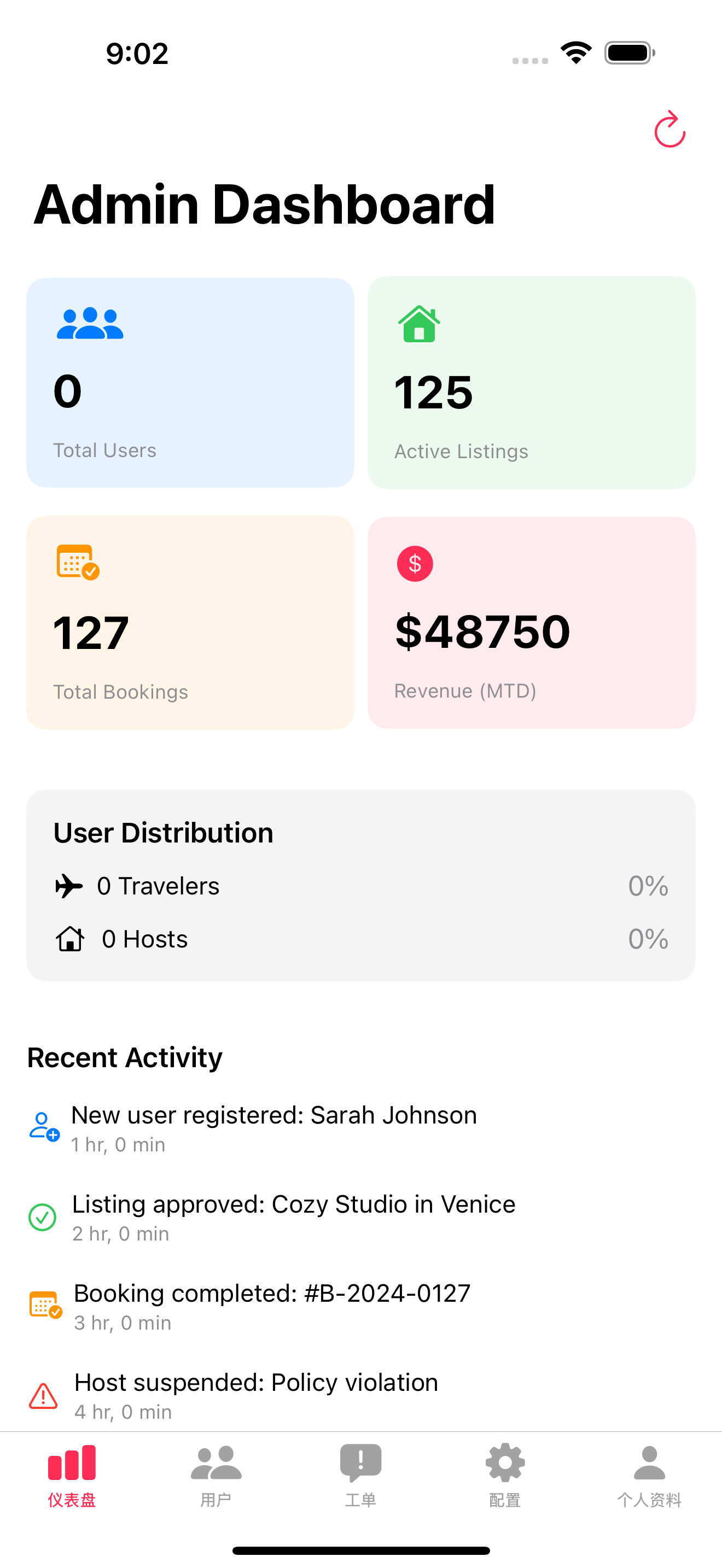
Bottom Navigation (5 tabs): 1. Dashboard (📊 chart.bar.fill icon) - Platform overview and metrics 2. Users (👥 person.2.fill icon) - User management 3. Tickets (⚠️ exclamationmark.bubble.fill icon) - Bug reports & feedback 4. Config (⚙️ gearshape.fill icon) - App configuration settings 5. Profile (👤 person icon) - Admin profile settings
Dashboard Overview:
Location: Main tab → “Dashboard” (chart.bar.fill icon)
Dashboard Sections:
Overview Metrics: - Total Users - Count by role (Guests, Hosts, Curators, Admins) - Active Listings - Live properties - Total Bookings - All-time and this month - Monthly Revenue - Platform revenue this month
Quick Actions: - User Management - Listing Management - Analytics - Reports
Recent Activity: - New user registrations - New listings submitted - New bookings - Issues reported
8.3 Tickets (Bug Reports & Feedback)
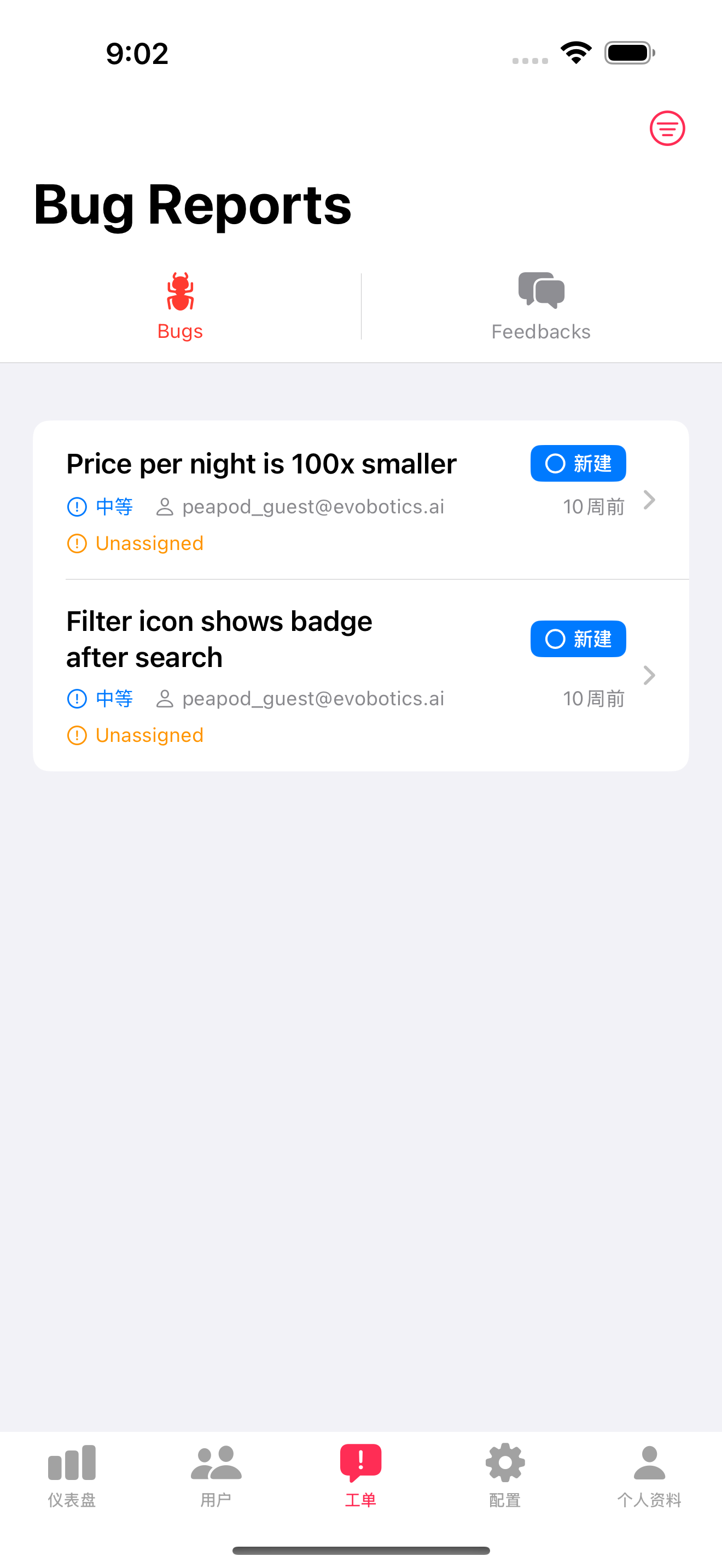
Access: Bottom nav → “Tickets” tab
Two Categories: 1. Bugs - User-reported bugs and issues 2. Feedbacks - User suggestions and feature requests
Bug Report Details: - Title - Issue description - Priority - Low/Medium/High/Critical (with color indicators) - Status - New/Unassigned/In Progress/Resolved/Closed - Reporter - User email who reported - Date - “X days ago” - Badge - “New” for unread reports
Actions: - Tap report to see full details - Assign to team member - Update status - Add notes/comments - Mark as resolved - Notify user of resolution
Feedback Management: - Similar to bug reports - Categories: Feature Request, UX Improvement, Other - Vote count (upvotes from other users) - Implementation status tracking
8.4 User Management
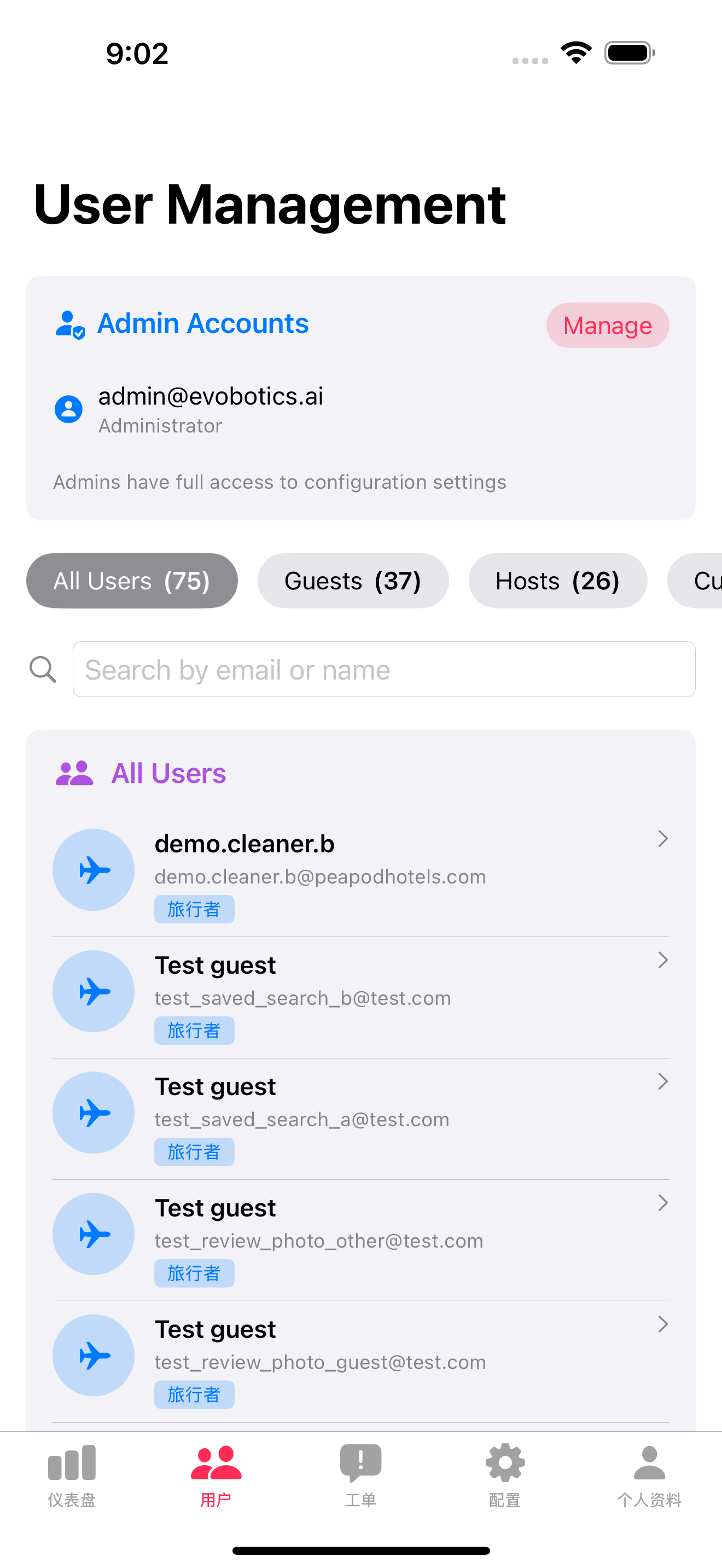
Access: Admin Dashboard → “Users”
User List Shows: - Profile photo - Full name - Email - User role (Guest, Host, Curator, Admin) - Join date - Account status (Active, Suspended, Deleted) - Verification status
User Detail Page:
Access user details by tapping on any user from the list. View comprehensive information across multiple tabs: - Overview - Bookings (if guest) - Listings (if host) - Reviews - Messages - Payment History - Activity Log
Admin Actions: - Send message - Reset password - Suspend account (7/30 days or permanent) - Delete account
Send Message to User:
Send direct messages to users from their detail page. Users receive messages in their inbox.
Reset User Password:
Send password reset link to user’s email. Available from user detail page.
Suspend User:
Temporarily or permanently restrict user access. Options include: - Reasons: Violation of terms, Fraudulent activity, Spam, Safety concern, Other - Duration: 7 days, 30 days, 90 days, or Permanent - User cannot log in during suspension - User receives email notification - Include internal notes for admin records
Delete User:
Permanently delete user account. This action: - Cannot be undone - Requires email confirmation to prevent accidental deletion - Archives all user data - Removes user from platform permanently
8.5 App Configuration
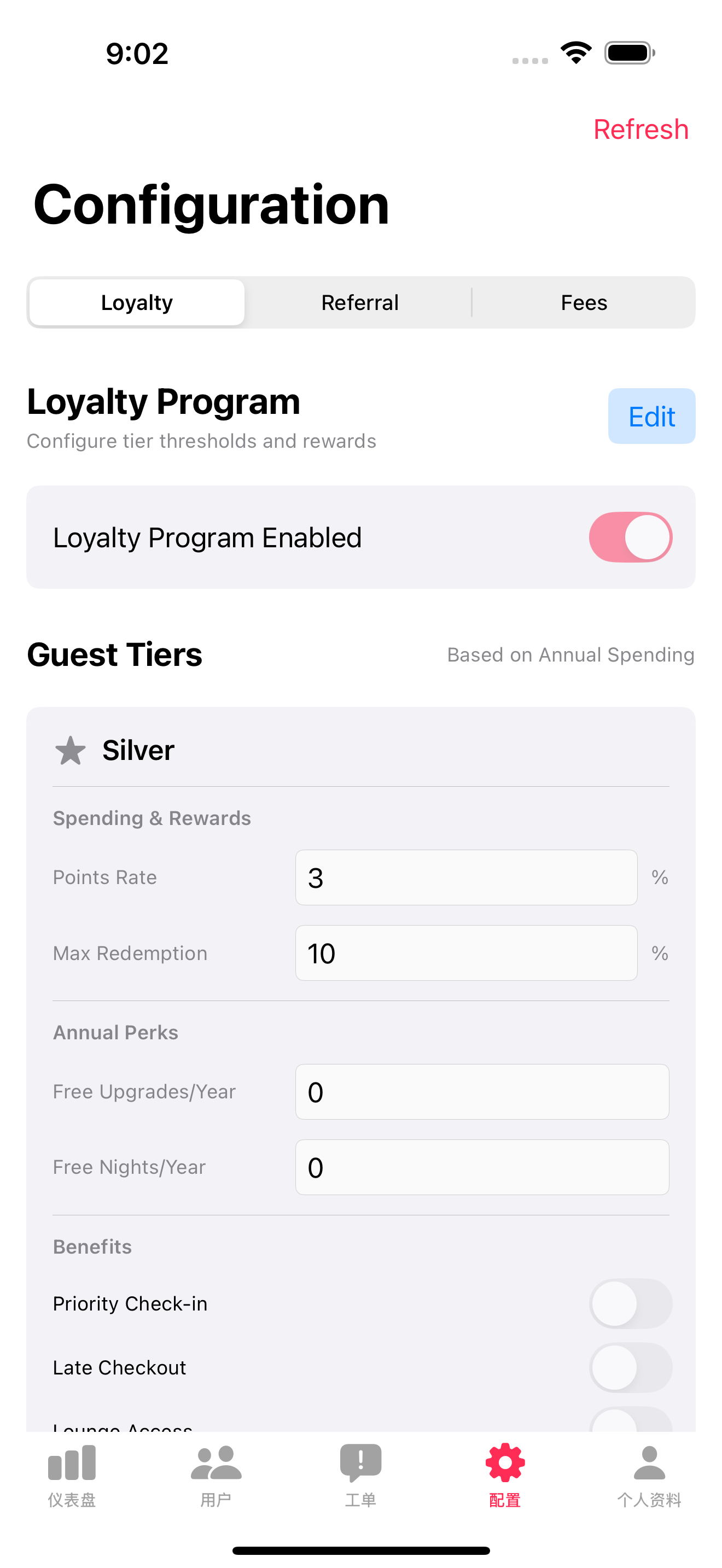
Access: Bottom navigation → Config tab (⚙️ gearshape.fill icon)
Configuration Categories (3 Tabs): 1. Loyalty - Guest/Host loyalty program settings 2. Referral - Referral program settings 3. Fees - Platform fees configuration
8.5.1 Loyalty Program Configuration
Access: Config tab → “Loyalty” sub-tab
Guest Loyalty Tiers:
Guest Tier Configuration Table:
Based on Annual Spending (resets yearly):
- Silver ($0+/year - Default)
- Annual Spending Threshold: $0
- Reward Rate: 2% of booking value
- Perks: Standard support
- Gold ($2,500+/year)
- Annual Spending Threshold: $2,500
- Reward Rate: 3% of booking value
- Perks: Priority support, early access to promotions
- Platinum ($5,000+/year)
- Annual Spending Threshold: $5,000
- Reward Rate: 4% of booking value
- Perks: Premium support, exclusive deals, late checkout (when available)
- Diamond ($10,000+/year)
- Annual Spending Threshold: $10,000
- Reward Rate: 5% of booking value
- Perks: VIP support 24/7, guaranteed early access, complimentary upgrades, personal concierge
Editable Fields: - Annual spending threshold for each tier - Reward rate percentage (points earned on bookings) - Tier names - Tier benefits/perks - Max redemption percentage (default: 20% of booking cost)
Important Notes: - Tiers based on ANNUAL SPENDING, not total points - Points = 1% of booking value (base) × tier multiplier - Example: Gold tier guest spends $1,000 → Earns 3,000 points ($30 value) - Spending resets each year - Platform fee constant 15% for all tiers
CN Release 1.0 Loyalty Restrictions: > ⚠️ IMPORTANT: For CN Release 1.0, loyalty points have restrictions: > - Points can ONLY be used for booking discounts > - Cash withdrawal is NOT available (no points-to-cash conversion) > - Points cannot be transferred to other users > - Points expire after 24 months of account inactivity
Host Loyalty Tiers:
Host Tier Configuration Table:
Based on Annual Revenue (gross booking amount, resets yearly):
- Silver ($0+/year - Default)
- Annual Revenue Threshold: $0
- Reward Rate: 2.0% of gross bookings
- Perks: Standard support
- Gold ($50,000+/year)
- Annual Revenue Threshold: $50,000
- Reward Rate: 2.5% of gross bookings
- Perks: Priority support, featured listing placement
- Platinum ($250,000+/year)
- Annual Revenue Threshold: $250,000
- Reward Rate: 3.0% of gross bookings
- Perks: Premium support, exclusive webinars, early access to features
- Diamond ($500,000+/year)
- Annual Revenue Threshold: $500,000
- Reward Rate: 3.5% of gross bookings
- Perks: VIP support 24/7, personal account manager, custom marketing, guaranteed featured placements
Editable Fields: - Annual revenue threshold for each tier - Reward rate percentage (points earned on gross bookings) - Tier names - Tier benefits/perks
Important Notes: - Tiers based on ANNUAL REVENUE (gross booking amount before fees) - Points earned on gross bookings (what guests pay, not host payout) - Platform fee constant 15% for all tiers (base fee - rebates may reduce) - Points are a bonus, not a fee reduction - Hosts can redeem points for personal travel bookings
CN Release 1.0 Host Loyalty Restrictions: > ⚠️ IMPORTANT: Same restrictions apply to host loyalty points: > - Points can ONLY be used for booking discounts (when booking as guest) > - Cash withdrawal is NOT available > - Tier rebates reduce platform fee (separate from points)
Superhost Badge (Separate from Tiers):
Superhost Configuration: - Minimum bookings: 10 (default) - Minimum rating: 4.8 stars (default) - Response rate: 90% within 24h (default) - Cancellation rate: < 1% (default) - Review period: Last 12 months (default)
Note: Superhost is a quality badge, separate from loyalty tiers. Hosts can be Superhost AND have loyalty tier.
8.5.2 Referral Program Configuration
Access: Config tab → “Referral” sub-tab
Overview: Configure the guest referral system - how much commission guests earn when friends book, and customize the share message.
Configuration Sections:
A. Guest Referrals Settings
Commission Rate: - Label: “Commission Rate” - Default: 2.0% of booking amount - Range: 0% - 10% (recommended: 1-3%) - Example: 2% means referrer earns 200 points per $100 booking
Duration: - Label: “Referral Duration” - Default: 12 months - Range: 1-24 months - Description: How long referrer earns commission from referee’s bookings
Points Conversion: - Label: “Points to Dollar Rate” - Default: 100 (100 points = $1.00) - Fixed: Cannot change (maintains consistency)
B. Share Message Templates
Share Link Template: - Label: “Share Link Template” - Default: https://peapodhotels.com/join?ref={CODE} - Placeholders: {CODE} - replaced with referral code - Example: https://peapodhotels.com/join?ref=JOHN1234
Share Message Template: - Label: “Share Message Template” - Default: ``` Hey! I’m using Peapod to find amazing places to stay. Join me with my referral code {CODE} and start exploring!
{LINK} ``- **Placeholders:** -{CODE}- User's referral code -{NAME}- User's full name -{LINK}` - Generated invite link - Character Limit: 500 characters recommended - Multi-line: Supports line breaks
How Share Works: 1. Guest taps “Share” on Referral tab 2. App fetches templates from config 3. Replaces placeholders with actual values 4. Opens iOS share sheet 5. Guest shares via iMessage, WhatsApp, Email, etc.
Example Customizations:
Aggressive Campaign (3%):
Commission Rate: 3.0%
Duration: 12 months
Message: "Get $30 for free! Use my code {CODE} and we both save!"
Conservative (1%):
Commission Rate: 1.0%
Duration: 6 months
Message: "I love Peapod! Join with {CODE}"
Important Notes: - Changes apply to ALL new referrals immediately - Existing referral relationships keep their original commission % - Share message changes affect all users immediately - Test changes with a guest account before announcing
8.5.3 Fees & Pricing Configuration
Platform Fee Structure (CN Release 1.0):
⚠️ IMPORTANT: CN Release 1.0 uses a host-only fee model to attract guests.
Current Fee Structure:
| Party | Fee | Notes |
|---|---|---|
| Guest Service Fee | 0% | Guests pay NO platform fees |
| Host Platform Fee | Tier-dependent | See tier table below |
| Minimum Booking Fee | $5 (flat rate) | Applies to very small bookings |
| Payment Processing | 2.9% + $0.30 | Stripe standard (absorbed by platform) |
Host Tier Fees (CN Release 1.0):
Higher-tier hosts pay lower platform fees:
| Host Tier | Annual Revenue | Platform Fee | Perks |
|---|---|---|---|
| Silver | $0+ | 13% | Standard support |
| Gold | $50,000+ | 12.5% | Priority support, featured placement |
| Platinum | $250,000+ | 12% | Premium support, webinars, early features |
| Diamond | $500,000+ | 11.5% | VIP 24/7, account manager, custom marketing |
How Host Tier Fees Work: 1. Host completes booking, earns gross revenue 2. Platform fee applied based on host’s current tier 3. Host receives payout (booking minus tier fee) 4. Tier recalculated based on trailing 12-month revenue
Example Payouts by Tier ($1,000 booking):
| Tier | Fee | Payout |
|---|---|---|
| Silver | 13% ($130) | $870 |
| Gold | 12.5% ($125) | $875 |
| Platinum | 12% ($120) | $880 |
| Diamond | 11.5% ($115) | $885 |
Regional Pricing: - US Market: USD, Stripe payments - China Market: CNY, WeChat/Alipay (future) - Currency Conversion: Real-time rates + 2% markup
Editable Fields: - Guest service fee percentage (currently 0% for CN Release) - Host platform fee per tier (Silver 13%, Gold 12.5%, Platinum 12%, Diamond 11.5%) - Tier revenue thresholds ($0, $50k, $250k, $500k) - Minimum booking fee amount - Currency conversion markup - Regional pricing rules
8.5.4 Feature Flags
Available Feature Flags: - Social Authentication: - Apple Sign In: ✅ Enabled - Phone Auth: ✅ Enabled (awaiting toll-free approval) - Google Sign In: ✅ Enabled - WeChat Sign In: ❌ Coming Q1 2026 - WhatsApp Sign In: ❌ Coming Q2 2026 - Search & Discovery: - AI Search: ✅ Enabled - Saved Searches: ✅ Enabled - Price Alerts: ❌ Coming Q1 2026 - Payments: - Apple Pay: ✅ Enabled - Stripe Card: ✅ Enabled - WeChat Pay: ❌ Coming 2026 - Alipay: ❌ Coming 2026 - Loyalty: - Guest Loyalty: ✅ Enabled - Host Superhost: ✅ Enabled - Referral Program: ✅ Enabled - Notifications: - OneSignal Push: ✅ Enabled - Email Notifications: ✅ Enabled - SMS Notifications: ❌ Coming Q1 2026
Rollout Controls: - Beta Testing Mode: Enable for subset of users - Percentage Rollout: 0-100% of users - User Role Filter: Enable for specific roles only - Region Filter: Enable for specific regions only
8.5.5 Other Configuration (Coming Soon)
Planned Configuration Sections: - Email Templates - Customize notification emails - Push Notification Templates - Customize push messages - Review Moderation - Auto-flag keywords, profanity filters - Search Ranking - Boost factors (rating, response time, etc.) - Cancellation Policies - Customize policy templates - House Rules Templates - Default rules for hosts - Safety & Verification - ID verification requirements - Regional Settings - Language, currency, payment methods
8.6 Analytics
Access: Admin Dashboard → “Analytics”
Platform Metrics: - User Growth - New users per day/week/month - Listing Growth - New listings added - Booking Volume - Bookings per day/week/month - Revenue - Platform fees collected - Occupancy Rate - % of nights booked - Average Booking Value - Mean booking total - Conversion Rate - % of searches that book
Charts Available: - User growth trend (line chart) - Revenue by month (bar chart) - Top locations (map) - Popular amenities (pie chart) - Booking sources (pie chart)
How to Use: Select date range, choose metrics to view, visualize data, and export to CSV for further analysis.
8.7 Reports & Platform Health
Access: Admin Dashboard → “Reports”
Report Categories:
8.7.1 Platform Health Metrics
- Total users (breakdown by role)
- Active listings count
- Booking volume (daily/weekly/monthly)
- Platform revenue
- User growth trends
Access through “Reports” → “Platform Health”, select date range, and export data as needed.
8.7.2 API Response Time
- Average API response time
- Slowest endpoints
- Error rates
- Database query performance
Monitor API performance through “Reports” → “API Performance” to identify bottlenecks.
8.7.3 Database Usage
- Database size
- Table sizes
- Query performance
- Index usage
- Connection pool status
View database metrics through “Reports” → “Database” to monitor storage and connection health.
8.8 Badge Management
What Is Badge Management?
Admin interface to create, edit, approve, and revoke host quality badges and property feature badges. Ensures badge integrity and quality standards.
Access: Config tab → “Badges” section (or Admin Dashboard → Badge Management)
Badge Types: 1. Host Quality Badges - Performance-based (Superhost, Instant Reply, Top Host) 2. Property Feature Badges - Verified features (Sustainable Stay, Remote Work Ready, Pet-Friendly)
8.8.1 View All Badges
Access badge management through Config → “Badge Management”. Two categories available:
Host Badges (Automated): - Superhost - Instant Reply - Experienced Host - New Host - Top Host
Property Badges (Require Verification): - Sustainable Stay - Remote Work Ready - Pet-Friendly Certified - Family-Friendly Certified - Luxury Stay
Badge Information Displayed: - Badge icon & name - Type: Automated or Requires Verification - Status: Active / Inactive - Total awarded count - Pending applications count (for verification badges) - Actions: Edit / View Details / Deactivate
8.8.2 Review Badge Applications
For Admin-Verified Badges (Sustainable, Remote Work, Luxury):
Review applications submitted by hosts for property badges. Each application includes: - Host name & property name - Application date - Status: Pending Review / Approved / Rejected - Submitted documentation (photos and descriptions)
Review Process:
Review submitted photos and documentation to verify claims: - Check photo quality and authenticity - Verify features meet badge criteria - Look for red flags (stock photos, unclear images, missing documentation)
Decision Actions:
Approve Badge: - Award badge to property - Badge appears on listing immediately - Host receives approval notification - Badge shows in search results
Request More Info: - Request additional documentation or clearer photos - Host receives feedback notification - Application status updates to “More Info Requested” - Host can resubmit improved documentation
Reject Badge: - Deny badge application - Select rejection reason (insufficient documentation, doesn’t meet standards, fake photos, doesn’t qualify) - Provide optional feedback message - Host receives rejection notification - Application archived (can reapply after 30 days)
8.8.3 Revoke Badges
When to Revoke: - Guest complaints about misrepresented features - Host removes feature (e.g., disconnects solar panels) - Property no longer meets criteria - Badge fraud detected
Revocation Process:
Search for the property with the badge in question. Review badge award details including: - Date awarded - Verification photos - Original documentation - Recent complaints or issues
Revoke the Badge: - Select revocation reason (feature no longer meets standards, misrepresentation, fraud, etc.) - Provide message to host explaining the revocation - Confirm revocation - Badge removed from listing immediately - Host receives notification - Property marked for re-verification if applicable
8.8.4 Automated Badge Monitoring
Superhost Auto-Review (Quarterly):
What Happens: - System runs quarterly on Jan 1, Apr 1, Jul 1, Oct 1 - Checks all hosts against Superhost criteria: - 4.8+ rating - 90%+ response rate - <1% cancellation rate - 10+ completed bookings in past 12 months - Awards badge to qualifying hosts - Removes badge from hosts who no longer qualify - Sends notifications to affected hosts
Admin Monitoring:
View automated review schedule and results through Badge Management → Superhost. Review includes: - Upcoming review date - Last review results (hosts awarded, hosts lost badge, reasons for loss) - Detailed change log
Manual Override: - Manually award Superhost to deserving hosts (edge cases) - Manually revoke for violations (fraud, major issues) - All overrides recorded in audit log
8.8.5 Badge Statistics & Reports
Badge Analytics Dashboard:
Access through Badge Management → Analytics tab. View key metrics: - Total Badges Awarded: Overall count - Superhost Count: Percentage of active hosts - Pending Applications: Current queue - Revocations: Recent removals
Badge Performance Metrics: - Click-through Rate: How often badges lead to listing views - Conversion Rate: Bookings from badge-labeled listings vs non-badge - Application Volume: Applications per badge type - Approval Rate: % of applications approved - Revocation Rate: % of badges revoked
Example Badge Report:
Sustainable Stay Badge metrics include: - Total awarded properties - Pending applications - Approval rate (approved/rejected/pending breakdown) - Revocation rate - Conversion lift (bookings vs non-certified) - Average pricing premium
Export Options: - CSV: Badge list with award dates - PDF: Monthly badge report - JSON: API data for external analytics
8.9 Message Template Management
What Is Template Management?
Admin interface to manage the default message templates available to all hosts. Edit content, add new templates, or remove templates platform-wide.
Access: Config tab → “Message Templates” section
8.9.1 View Default Templates
Access through Config → “Message Templates” to see 10 default templates: - Check-in Instructions (Detailed) - Check-in Instructions (Simple) - Early Check-in Request - House Rules Reminder - Quiet Hours Reminder - Local Recommendations - Transportation Tips - Thank You After Checkout - Issue Resolution - Pricing Breakdown Explanation
Template Information: - Name - Category (Check-in, Rules, Tips, General, Pricing) - Usage count (platform-wide) - Last modified date - Status: Active / Inactive - Actions: Edit / Preview / Deactivate / Delete
8.9.2 Edit Default Template
Select any template to open the editor. Edit template fields: - Name: Template name (editable) - Category: Dropdown (Check-in, Rules, Tips, General, Pricing) - Content: Multiline text editor (500 char limit) - Variables: Available variables ({{guest_name}}, {{listing_title}}, etc.) - Usage Count: Platform-wide usage (read-only)
Editing Process: 1. Edit template content and name 2. Use “Insert Variable” to add dynamic placeholders 3. Preview template with sample data 4. Save changes 5. Updated template available to all hosts immediately
Important Notes: - Changes apply to all hosts platform-wide - Hosts who customized this template keep their custom version - Only affects default template (hosts can still edit individually)
8.9.3 Create New Default Template
Create new templates through Config → Message Templates → “+ New Template”
Template Creation: 1. Fill required fields: - Name: Template name - Category: Select category - Content: Template text with variables 2. Insert variables at cursor position using “Insert Variable” button 3. Preview template with sample data 4. Save template 5. New template immediately available to all hosts
Available Variables (25+): - Guest: {{guest_name}}, {{guest_full_name}}, {{guest_count}} - Property: {{listing_title}}, {{property_address}}, {{wifi_password}}, {{lockbox_code}} - Booking: {{check_in_date}}, {{check_in_time}}, {{check_out_date}}, {{nights}} - Host: {{host_name}}, {{host_phone}} - Pricing: {{nightly_rate}}, {{total_price}}, {{cleaning_fee}}
8.9.4 Deactivate/Delete Templates
Deactivate Template: - Hides template from host UI - Hosts can’t use it for new messages - Existing customized versions still work - Can be reactivated later - Use for: Seasonal templates, deprecated templates
Deactivation Process: Select template, tap “Deactivate”, confirm action. Template status changes to “Inactive” and hosts no longer see it in template picker.
Delete Template: - Permanently removes template - Hosts lose access (unless they customized it) - Cannot be undone - Use for: Redundant templates, policy violations
Deletion Process: Select template, tap “Delete”, type confirmation (“DELETE”), confirm. Template permanently removed from database.
8.9.5 Template Usage Analytics
Access analytics through Config → Message Templates → Analytics
Usage Dashboard Metrics: - Most Used Template: Top template by usage count - Least Used: Templates with low usage - Total Template Sends: Messages sent (last 30 days) - Hosts Using Templates: Adoption rate percentage - Time Saved: Estimated efficiency gain
Template Performance:
View top templates ranked by usage: 1. Most popular templates (high usage) 2. Moderately used templates 3. Rarely used templates (candidates for removal)
Insights: - Identify popular templates (keep and improve) - Identify unused templates (consider removing) - Measure adoption rate (% of hosts using templates) - Calculate time savings (messages sent × avg time saved)
8.10 Review Moderation
What Is Review Moderation?
Admin tools to review flagged content, moderate photo reviews, and maintain review quality standards.
Access: Admin Dashboard → “Review Moderation” or Config → “Reviews”
8.10.1 Review Moderation Queue
Access through Admin → Review Moderation. Three queue tabs available: - Flagged Reviews - User-reported inappropriate content - Photo Reviews - New photo reviews awaiting approval - Spam Detection - Algorithmically flagged potential spam
Flagged Review Information: - Reviewer name & avatar - Review text (full content) - Photos (if included) - Star rating - Property name & host - Flag reason: “Inappropriate language” / “Fake review” / “Spam” / “Harassment” - Reporter: Who flagged it - Date flagged - Actions: Approve / Edit / Remove
8.10.2 Moderate Flagged Reviews
Review flagged content and take appropriate action based on community guidelines.
Approve (Keep) Review: - Review does not violate guidelines - Tap “Approve” button and confirm - Review remains published - Flag dismissed - Reporter notified of decision
Remove Review: - Review violates community guidelines (profanity, personal attacks, spam, off-topic) - Tap “Remove” button - Select violation type: - Profanity/Offensive language - Personal attacks/Harassment - Spam/Fake review - Off-topic content - Other (specify) - Confirm removal - Review deleted from listing - Reviewer and host notified
Edit Review (Remove Profanity): - Review contains minor profanity but otherwise valid feedback - Tap “Edit” button - Edit text to remove inappropriate content - Keep rest of review intact - Save edits - Edited review published - Reviewer notified - Original saved in moderation log
8.10.3 Photo Review Moderation
Review photo submissions from guests to ensure quality and compliance with guidelines.
Review Photo Submissions:
Access “Photo Reviews” tab in moderation queue. Each submission shows: - Reviewer name - Property name - Star rating - Review text - Uploaded photos (up to 5)
Review Process:
Examine each photo for: - Quality (clear, well-lit, relevant) - Privacy (no identifiable people) - Appropriateness (no inappropriate content) - Authenticity (not stock photos) - Relevance (related to property)
Approve with Photo Removal:
If some photos violate guidelines: - Tap “Approve with Changes” - Select photos to remove - Provide reason (privacy violation, inappropriate content, etc.) - Approve review - Review published with approved photos only - Removed photos deleted - Reviewer notified
Photo Violation Types: - Identifiable people (privacy) - Inappropriate content (nudity, violence) - Unrelated to property (spam) - Stock photos (fake reviews) - Low quality (blurry, dark)
8.11 Curator SLA Escalation (CN Release 1.0)
What Is SLA Escalation?
When curators fail to meet Service Level Agreement targets, the system automatically escalates to Admin. This ensures hosts receive timely responses and platform quality is maintained.
Access: Admin Dashboard → “SLA Alerts” or Notifications → “Curator SLA”
8.11.1 SLA Targets Reference
| Review Type | Target Time | Maximum Time | Escalation Trigger |
|---|---|---|---|
| New Listing Approval | 24 hours | 48 hours | > 48h unreviewed |
| Critical Edit Review | 24 hours | 48 hours | > 48h unreviewed |
| Re-submission Review | 24 hours | 48 hours | > 48h unreviewed |
| Safety/Abuse Reports | 4 hours | 8 hours | > 8h unaddressed |
| Dispute Resolution | 24 hours | 48 hours | > 48h unresolved |
8.11.2 SLA Escalation Alerts
What You’ll See:
When SLA is breached, Admin receives: - 🚨 Push notification: “SLA Breach: [Curator Name] - [Review Type] pending 52 hours” - 📧 Email alert: Detailed breakdown with link to pending item - 📊 Dashboard badge: “X SLA Breaches” count
Alert Information: - Curator name and profile - Review type (New Listing, Critical Edit, Safety, etc.) - Time in queue (how long past SLA) - Listing/property details - Host name (who is affected)
8.11.3 Admin Actions on SLA Breach
Option 1: Message Curator - Send message asking for status update - Curator may have valid reason (sick, emergency) - Set follow-up reminder
Option 2: Reassign Task - Move pending review to another curator - Original curator notified of reassignment - Task gets fresh SLA clock
Option 3: Admin Completes Review - Admin takes over and completes review directly - Used for urgent items or when no curator available - Logged in audit trail
Option 4: Extend SLA (with reason) - Grant temporary extension (e.g., +24 hours) - Requires documented reason - Host not notified (internal only)
8.11.4 SLA Performance Dashboard
Access: Admin Dashboard → “Curator Performance” → “SLA Compliance”
Metrics Displayed: - Overall SLA Compliance Rate: Platform-wide % (target: 95%+) - Breaches This Week: Count of SLA violations - Breaches This Month: Monthly total - Average Review Time: Platform-wide average
Per-Curator Breakdown: - Curator name - Total reviews this month - SLA compliance rate (%) - Breaches count - Average review time - Trend (improving/declining)
Example Dashboard:
| Curator | Reviews | SLA Rate | Breaches | Avg Time |
|---|---|---|---|---|
| Sarah K. | 45 | 98% | 1 | 8.5h |
| Mike L. | 38 | 95% | 2 | 14.2h |
| Jane W. | 52 | 100% | 0 | 6.1h |
| Total | 135 | 97.5% | 3 | 9.6h |
8.11.5 SLA Breach Patterns & Actions
Identifying Problems: - Single breach: May be one-off (illness, emergency) - 3+ breaches/month: Pattern - requires discussion - Consistent breaches: Performance issue - may need training or removal
Recommended Actions:
| Breach Frequency | Admin Action |
|---|---|
| First breach | Send friendly reminder |
| 2-3 breaches/month | Schedule 1-on-1 discussion |
| 4+ breaches/month | Performance improvement plan |
| Continued breaches | Consider role reassignment or removal |
Documentation: - All SLA breaches logged automatically - Admin actions recorded in audit trail - Curator receives copy of any formal actions
8.12 Profile & Settings
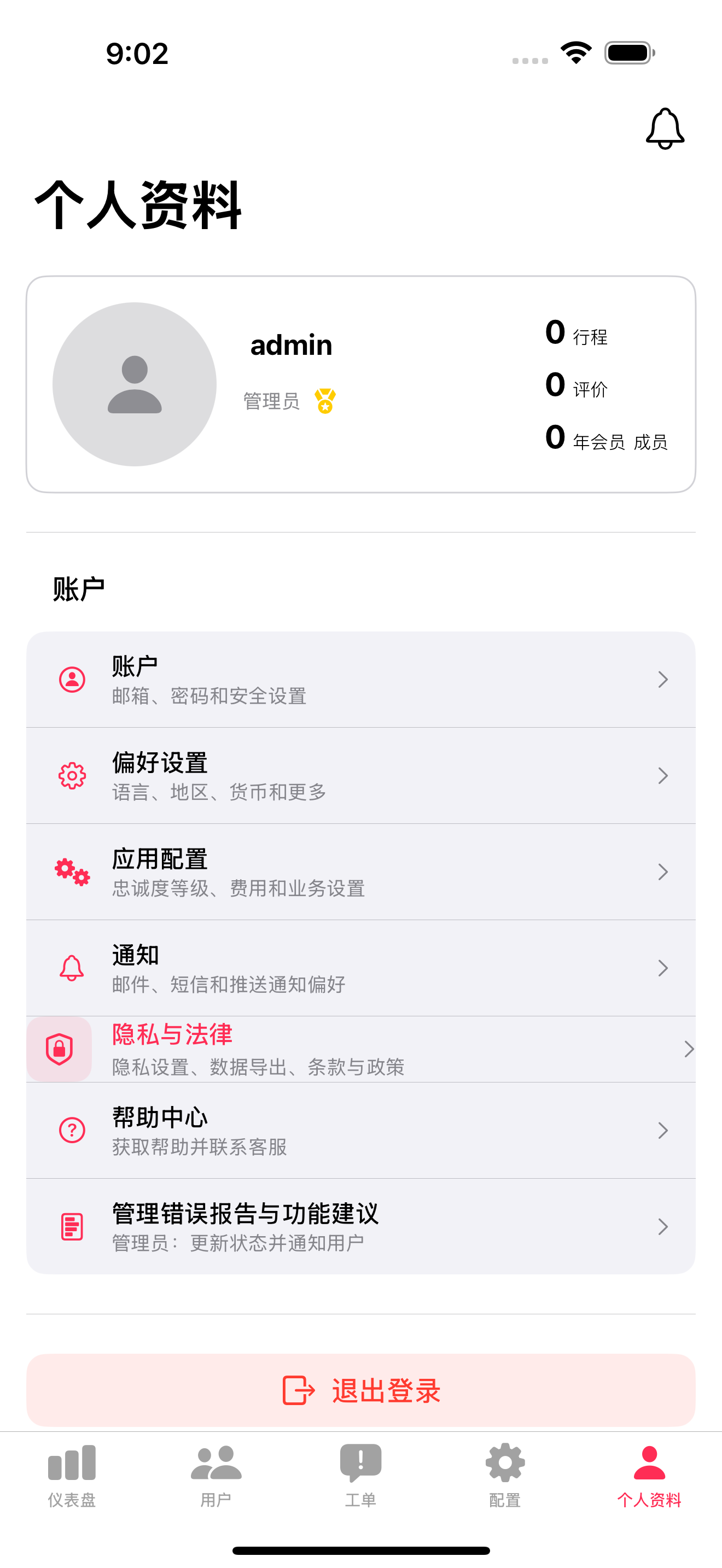
For common profile and account features, see the Common Features section in the main index:
- Profile Management - View and edit your profile, profile tabs
- Messaging System - How to send and receive messages
- Notification Settings - Configure alerts and notifications
- Account Settings - Email, password, 2FA, security
- Region & Language - Language, currency, time zone
- Privacy Settings - Visibility, data download, account deletion
- Help & Support - Get help, contact support, report problems
- Sign Out - How to sign out
Admin-Specific Profile Features:
Admin Stats: - Total users managed - Active tickets resolved - Platform health score (0-100%) - Admin actions this month
Profile Tabs:
About Tab: - Bio/description - Role: Platform Administrator - Contact information - Admin permissions level
Activity Tab: - Recent admin actions - User management history - Configuration changes - Ticket resolutions
Notification Preferences:
Admins can configure specific alerts for: - New user registrations (push/email) - Critical platform alerts (push/email/SMS) - Security incidents (immediate push/SMS) - Weekly platform summary (email only) - Daily ticket digest (email only) - User suspension requests (push/email)
Notification Channels: - Push: In-app notifications (immediate) - Email: Digest or immediate - SMS: Critical alerts only (requires phone verification)
Access via Profile → Settings → Notifications
8.7.4 Issue Tracking
Track and resolve user-reported issues: - User reports (guests reporting hosts, vice versa) - Listing reports (safety issues, inaccuracies) - Review reports (inappropriate content) - Message reports (spam, harassment)
Issue Resolution Process: Access “Reports” → “Issues” to view unresolved issues. For each issue: 1. Review evidence (screenshots, messages) 2. Take appropriate action: - Dismiss (no action needed) - Warn user - Remove content - Suspend user 3. Write resolution note 4. Mark as resolved 5. Reporter receives notification
8.7.5 Export User Data
Export various data types for analysis or GDPR compliance: - All user data - Booking history - Listings data - Analytics
Access through “Reports” → “Data Export”, select data type and date range, generate export, and download CSV file.
8.7.6 Monthly Reports
Automated monthly platform summaries including: - Revenue reports - User growth reports - Booking trends - Performance metrics
Access through “Reports” → “Monthly Reports”, select month/year, view comprehensive report, and download as PDF or CSV.